The NVMe drive read sequential data roughly nine times faster than the microSD card, and the Raspberry Pi 5 still took longer to reach its desktop. In CNX Software’s November 2024 review of the official SSD kit, the 64GB Raspberry Pi microSD card averaged 21.74 seconds from power-on to the top bar, while the SSD averaged 22.85 seconds even after the boot order was changed to try NVMe first. The lesson is to know which numbers move and which ones don’t before buying a HAT and an SSD.
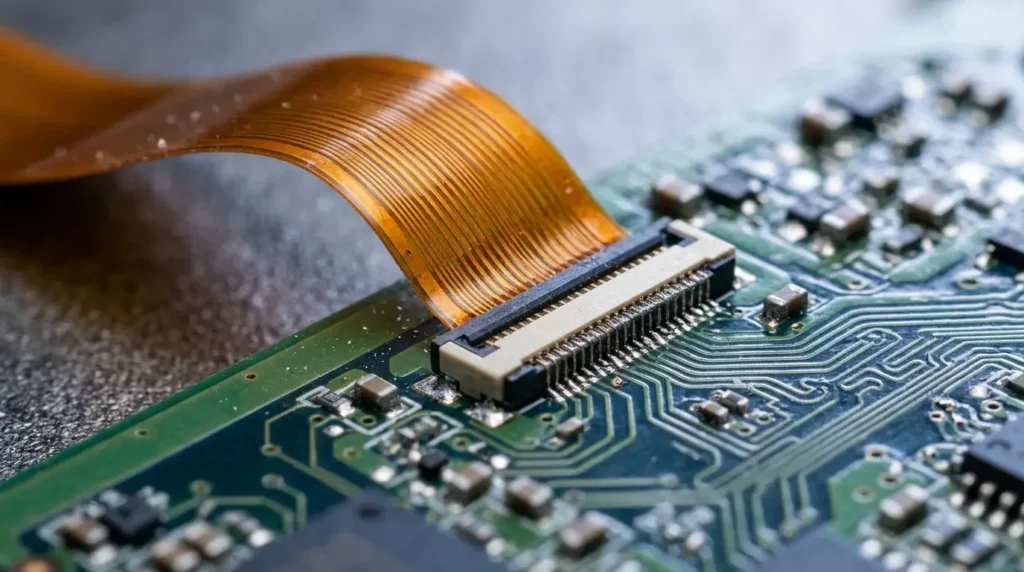
One PCIe lane on a ribbon cable
The Pi 5’s fast storage port is a single Gen 2 lane, by design
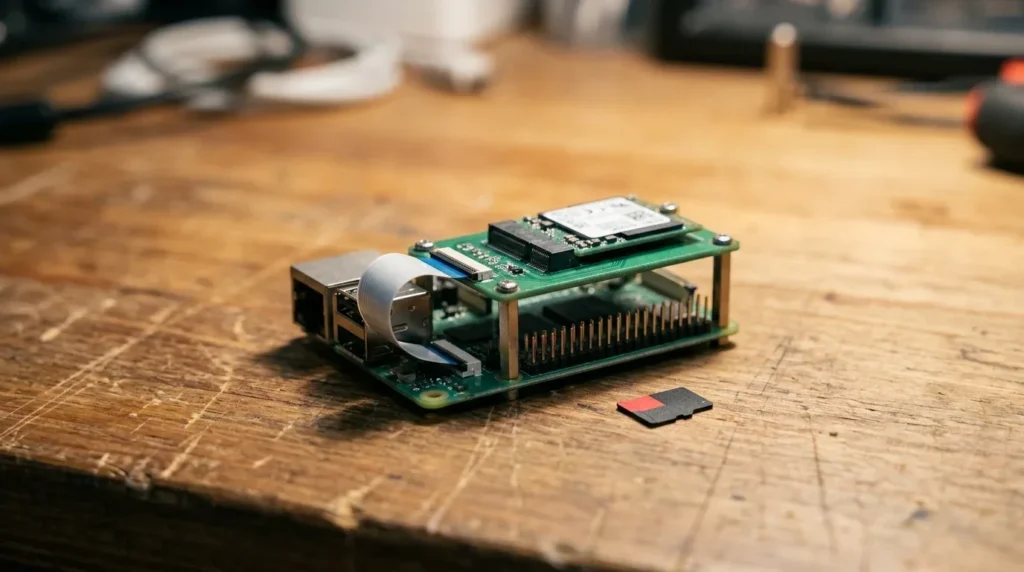
The Raspberry Pi 5 has a small flat-cable connector on the left side of the board. Raspberry Pi’s hardware documentation describes it plainly: “This connector breaks out a PCIe Gen 2.0 ×1 interface for fast peripherals.” The official M.2 HAT+ documentation gives the ceiling as a “single-lane PCIe 2.0 interface (500 MB/s peak transfer rate).”
That number falls out of the link’s encoding. PCIe Gen 2 runs at 5 GT/s with 8b/10b encoding, so 8 of every 10 bits carry data, and Gen 3 runs at 8 GT/s with 128b/130b, per Basler’s explanation of PCIe transfer rates. Running both through Python on an Ubuntu test container:
Gen2 x1 payload 500.0 MB/s, Gen3 x1 984.6 MB/s, ratio 1.97A desktop NVMe drive is built for four lanes, and the Pi gives it one. Earlier x9m8 coverage of PCIe 6.0 drives in data centers describes the other end of that pipe; the Pi sits at the garden-hose end, and any SSD faster than about 1 GB/s spends most of its life waiting.
HAT options and drive sizes
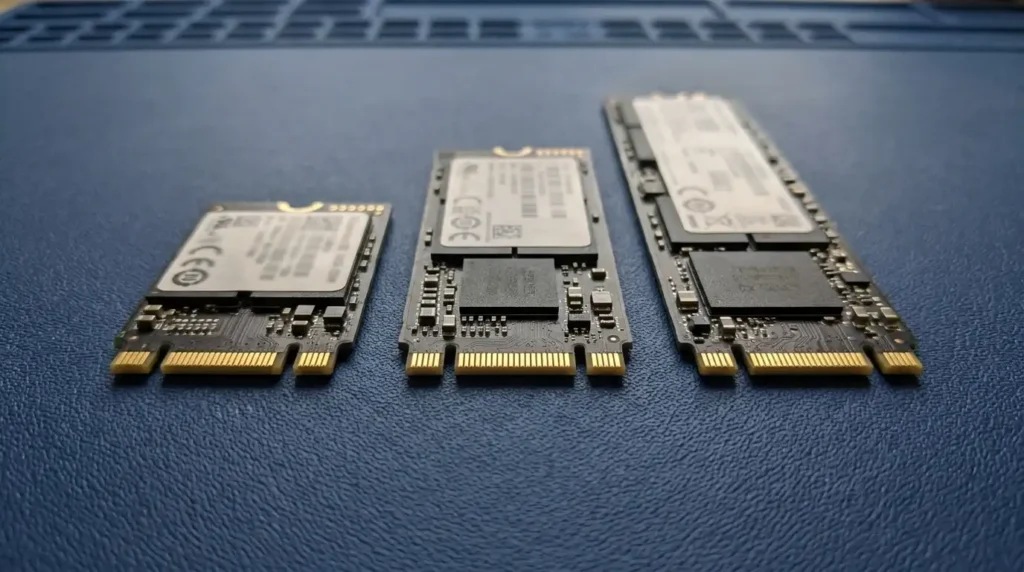
On top or underneath, and which lengths fit
Raspberry Pi’s own adapter, the M.2 HAT+, went on sale for $12, according to the company’s May 2024 launch post. Its documentation says it “supports any device that uses the 2230 or 2242 form factor,” while the Compact model takes 2230 only, and it can supply “up to 3 A” to the M.2 device. In October 2024 Raspberry Pi added its own drives: a 256GB SSD at $30 alone or $40 as a kit with the HAT, and a 512GB at $45 or $55, per the SSD launch announcement. The post says both capacities offer minimum 4KB random read and write performance of “40k IOPS and 70k IOPS respectively.”
Third-party boards widen the size range. Pimoroni’s NVMe Base mounts under the Pi and lists “2230 to 2280 sizes supported,” which opens up the full-length 2280 drives that fill most retail shelves. The same page carries something more useful than any spec sheet: a list of drives to avoid, including the Gigabyte G3NVMEV2256G, KingSpec NX series, Kingston OM8SEP4256Q-A0, Transcend 110Q, WD SN810 256GB and WD Green, Blue, Red and Black drives unless listed as working. A “maybe” list adds the PNY CS1030 250GB and Samsung 980 Pro 250GB, and notes a WD Blue SN550 that would not boot.
A board that doesn’t follow the HAT+ specification may need one more line in the bootloader config. Raspberry Pi’s documentation says that with PCIE_PROBE=1 “the bootloader enumerates the PCIe x1 interface to discover NVMe devices during boot,” and Jeff Geerling’s NVMe boot guide adds it specifically for non-HAT+ adapters. For an all-in-one kit with a case and supply already sorted, the earlier CanaKit Raspberry Pi 5 review covers that route.
Setting the EEPROM boot order
BOOT_ORDER is read right to left, and the digit for NVMe is 6
The Pi 5 decides where to boot from a setting stored in its bootloader EEPROM, not on the SD card. The documentation says the value “is read right to left, and up to eight digits can be defined,” and “for NVMe boot, use boot mode 6.” Its table lists 0xf41 as “Try SD first, followed by USB-MSD then repeat (default if BOOT_ORDER is empty).” The documented NVMe line is BOOT_ORDER=0xf416.
Decoding the default, the documented NVMe value and one variant that drops the SD card entirely, in Python on the test container:
0xf41 -> SD card then USB-MSD then RESTART
0xf416 -> NVMe then SD card then USB-MSD then RESTART
0xf46 -> NVMe then USB-MSD then RESTART
There are two ways to change it. The menu route, from the M.2 HAT+ page, is sudo raspi-config, then “Under Advanced Options > Boot Order, choose NVMe/USB boot.” The direct route is sudo rpi-eeprom-config --edit, which the hardware documentation describes as editing the current EEPROM configuration and applying it to the latest EEPROM release.
The usual sequence, per Geerling’s guide:
- Add
dtparam=pciex1to/boot/firmware/config.txt(dtparam=nvmeis an alias). - Put an OS on the NVMe drive, either by flashing it with Raspberry Pi Imager or by cloning the running microSD install.
- Set
BOOT_ORDER=0xf416, and addPCIE_PROBE=1for a non-HAT+ board. - Reboot.
The M.2 HAT+ page also notes a shortcut: “If you don’t have an SD card inserted in your Raspberry Pi 5, it boots automatically from your NVMe drive.”
The PCIe Gen 3 setting
Twice the link speed, with a warning label attached
Raspberry Pi is direct about the risk. “The Raspberry Pi 5 isn’t certified for Gen 3.0 speeds. PCIe Gen 3.0 connections might be unstable,” the hardware documentation says. The setting itself is one line in config.txt, dtparam=pciex1_gen=3, or raspi-config under Advanced Options and then PCIe Speed.
The measured effect lines up with the encoding math. CNX Software ran iozone on the 256GB Raspberry Pi SSD (a Samsung PM991a) at both settings and confirmed with lspci that the link reached 8GT/s after the change. Python ratios from its published numbers:
| Test (iozone, CNX Software) | Gen 2 | Gen 3 | Gen 3 ÷ Gen 2 |
|---|---|---|---|
| Sequential write, 16 MB records | 390,976 KB/s | 739,594 KB/s | 1.89× |
| Sequential read, 16 MB records | 440,835 KB/s | 861,605 KB/s | 1.95× |
| Random read, 4 KB records | 58,477 KB/s | 62,231 KB/s | 1.06× |
| Random write, 4 KB records | 165,305 KB/s | 209,284 KB/s | 1.27× |
Sequential reads at Gen 3 land close to 90 percent of the 984.6 MB/s payload ceiling, the exact figure depending on whether iozone’s kilobyte is 1,000 or 1,024 bytes. Small random reads barely move, because they’re limited by latency and the drive’s controller, not by the width of the pipe. Pimoroni’s NVMe Base page gives typical Gen 3 peaks of about 700–800 MB/s read and 350–450 MB/s write, a range rather than a single test.
Real speed against the microSD card
The gap is huge for writes and modest for the reads that boot a system
The same CNX review tested Raspberry Pi’s A2 microSD cards in the Pi 5’s card slot. No hardware was tested for this article; the figures below are CNX’s, with ratios computed in Python against the SSD at Gen 3:
| Test | 32GB A2 card | 64GB A2 card | SSD (Gen 3) | SSD ÷ 64GB card |
|---|---|---|---|---|
| Sequential write | 40,226 KB/s | 72,909 KB/s | 739,594 KB/s | 10.1× |
| Sequential read | 93,180 KB/s | 91,769 KB/s | 861,605 KB/s | 9.4× |
| Random read, 4K | 16,133 KB/s | 26,655 KB/s | 62,231 KB/s | 2.3× |
| Random write, 4K | 6,104 KB/s | 15,862 KB/s | 209,284 KB/s | 13.2× |
Against the smaller 32GB card the random-write gap widens to 34.3×. That row is the one that matters for a Pi running a database, a container host, or anything that writes logs all day. Random reads, which dominate the work of loading programs and libraries, improve by a factor of two or four, depending on the card.
CNX’s summary table lists two rows as “32GB Raspberry Pi microSD,” and one of them matches the 64GB card’s raw test output; the table above follows the test output.
Where people get burned
Most failed NVMe boots are configuration, cable or drive choice
- The SD card wins by default. With an empty or default
BOOT_ORDERof0xf41, the Pi tries the SD card first. A card left in the slot boots instead of the new drive, and nothing on screen says so. Even when the SSD does boot, the search costs time: CNX’s SSD averaged 23.92 seconds before the order change and 22.85 after. - A drive on the avoid list. Pimoroni’s compatibility list names specific models that don’t work on its board, including common WD lines. Checking the adapter maker’s list before buying the SSD costs nothing.
- The ribbon cable. Geerling’s guide warns that PCIe “can be very fickle, depending on the quality of the FFC cable and connections.” Gen 3 makes a marginal cable worse, which fits Raspberry Pi’s own stability warning.
- No valid boot partition. The same guide notes NVMe boot fails without the PCIe port enabled or without “a working NVMe drive with a valid boot partition.” A blank drive formatted by hand is just storage.
- Drives behind a switch. At the time of Geerling’s guide, an NVMe drive behind a PCIe switch or bridge could be used as storage but not booted from, which ruled out some dual-drive boards as boot devices.
- Hot-plugging. The M.2 HAT+ documentation says “Always disconnect your Raspberry Pi from power before connecting or disconnecting a device from the M.2 slot.” The connector is not a USB port.
Once the drive is in service, checking its health log is the same job as on any other machine, covered in the smartctl guide.
The boot-time surprise
What NVMe buys is write speed and headroom; the cold start barely moves
The boot numbers are the strongest argument against the whole project. CNX’s systemd-analyze totals were 12.495 seconds for the 32GB card, 12.416 for the 64GB card and 12.123 for the SSD, a difference of about a third of a second. Time to the desktop wallpaper did favor the SSD, roughly 18.24 seconds against about 21.4 for the 64GB card, but the full top-bar figure went the other way. Startup on a Pi is dominated by firmware, kernel and service timing, and a faster drive can’t hurry a service that is waiting on the network. Booting from NVMe also adds a search step to firmware that, by default, looks at the SD card first.
So the upgrade is easiest to justify for workloads that hammer storage: a Pi running a database, a self-hosted photo library, a build box, a container host writing logs. For a Pi that boots once and runs a single sensor script for a year, a good A2 card is a padlock on a shed that holds a rake. The $40 kit still buys real throughput. Whether it buys anything the owner will notice depends on what runs after the boot finishes. What does a Pi in a home lab actually spend its disk time on, reads or writes?
Sources
- CNX Software, Raspberry Pi SSD Kit and Class A2 microSD cards review with Raspberry Pi 5 (Nov 19, 2024): https://www.cnx-software.com/2024/11/19/raspberry-pi-ssd-kit-and-class-a2-microsd-cards-review-with-raspberry-pi-5/
- Raspberry Pi, Raspberry Pi hardware documentation: https://www.raspberrypi.com/documentation/computers/raspberry-pi.html
- Raspberry Pi, M.2 HAT+ documentation: https://www.raspberrypi.com/documentation/accessories/m2-hat-plus.html
- Raspberry Pi, M.2 HAT+ on sale now (May 14, 2024): https://www.raspberrypi.com/news/m-2-hat-on-sale-now/
- Raspberry Pi, Raspberry Pi SSDs and SSD Kits (Oct 23, 2024): https://raspberrypi.com/news/raspberry-pi-ssds-and-ssd-kits
- Pimoroni, NVMe Base for Raspberry Pi 5: https://shop.pimoroni.com/products/nvme-base
- Jeff Geerling, NVMe SSD boot with the Raspberry Pi 5 (Oct 22, 2023): https://www.jeffgeerling.com/blog/2023/nvme-ssd-boot-raspberry-pi-5
- Basler, Transfer speeds explained: gigatransfers per second: https://docs.baslerweb.com/knowledge/transfer-speeds-explained-gigatransfers-per-second-gts
- x9m8, PCIe 6.0 SSDs already ship in data centers: https://x9m8.com/pcie-6-0-ssds-already-ship-in-data-centers-heres-why-desktop-drives-ar/
- x9m8, CanaKit Raspberry Pi 5 starter kit review: https://x9m8.com/canakit-raspberry-pi-5-starter-kit-review-easy-start-rising-price/
- x9m8, Check disk health with smartctl: https://x9m8.com/smartctl-check-disk-health/