

/dev/vda: Unable to detect device type
Please specify device type with the -d option.
That’s what smartctl -H printed when pointed at a working 256 GB virtual disk on an Ubuntu 24.04 test container, and it’s the first lesson of disk monitoring: SMART data only exists if something passes it through. A virtual disk, a cheap USB enclosure or a RAID card can hide it completely. Once the data does come through, the next lesson is harder. Backblaze found that 23.3 percent of its failed hard drives showed no warning at all in the five SMART attributes it watches most closely.
The first command, and what an empty answer means
smartctl talks to the drive’s firmware, and something has to carry the message
The smartctl tool comes from the smartmontools package. On the test container, version 7.4 printed its header and then the error above for the virtio disk /dev/vda. Forcing a device type didn’t help; every attempt failed at the open step:
== -d ata
Smartctl open device: /dev/vda failed: Operation not permitted
== -d sat
Smartctl open device: /dev/vda [SAT] failed: Operation not permitted
== -d scsi
Smartctl open device: /dev/vda failed: Operation not permitted
== -d nvme
Smartctl open device: /dev/vda failed: Operation not permitted
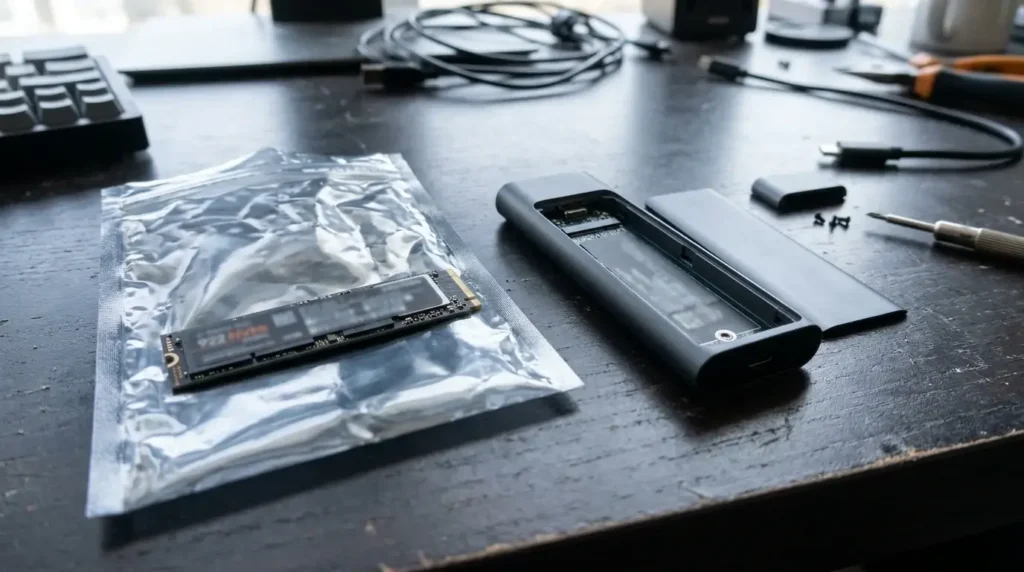
Two walls stand in the way there. The container isn’t permitted to open the device at all, and /dev/vda is a virtio disk presented by the hypervisor rather than a physical drive with its own firmware. The real drives sit on the host, and that is where smartctl has to run. The same logic applies to USB. The smartctl manual page describes -d sat as being for “ATA disks that have a SCSI to ATA Translation Layer (SATL) between the disk and the operating system,” and lists bridge-specific types such as usbjmicron and usbprolific for enclosures that need them.
On real hardware, the basic commands from the same manual are short:
sudo smartctl -H /dev/sda        # overall health status
sudo smartctl -A /dev/sda        # attribute table (or NVMe health log)
sudo smartctl -a /dev/sda        # most SMART information
sudo smartctl -x /dev/sda        # all SMART and non-SMART information
sudo smartctl -t short /dev/sda  # start a short self-test
sudo smartctl -l selftest /dev/sda
For NVMe drives, the manual says -a is “equivalent to ‘-H -i -c -A -l error -l selftest’.”
The exit status is a bitmask
A nonzero return code is eight yes-or-no answers packed into one number
Scripts that only check whether smartctl returned zero miss most of what it says. The manual’s EXIT STATUS section defines the exit status as a bitmask:
| Bit | Value | Meaning, per the manual |
|---|---|---|
| 0 | 1 | Command line did not parse |
| 1 | 2 | Device open failed, no IDENTIFY structure, or device in low-power mode |
| 2 | 4 | A SMART or other ATA command failed, or a checksum error |
| 3 | 8 | SMART status check returned “DISK FAILING” |
| 4 | 16 | Prefail attributes at or below threshold |
| 5 | 32 | “DISK OK” but some attributes were at or below threshold at some time in the past |
| 6 | 64 | The device error log contains records of errors |
| 7 | 128 | The device self-test log contains records of errors |
On the container, the auto-detect failure returned 1, and the forced -d sat attempt returned 2. A small Python decoder makes the mask readable:
1 ['bit 0: cmdline did not parse']
2 ['bit 1: device open failed']
4 ['bit 2: SMART/ATA command failed']
64 ['bit 6: error log has records']
192 ['bit 6: error log has records', 'bit 7: self-test log has errors']
0 ['all clear']
Bits 6 and 7 are the quiet ones. A drive can report “PASSED” on -H while its error log and self-test log hold failures, and the exit code is the only machine-readable place that difference shows up. The manual adds one caveat for ATA: “Failed self-tests outdated by a newer successful extended self-test are ignored.”
Backblaze’s five attributes
Five raw counters, and the statistics behind watching them
Backblaze, which records SMART stats daily for the drives in its data centers, laid out the attributes it relies on in an October 2016 analysis by Andy Klein covering 67,814 drives:
| Attribute | Name |
|---|---|
| SMART 5 | Reallocated Sectors Count |
| SMART 187 | Reported Uncorrectable Errors |
| SMART 188 | Command Timeout |
| SMART 197 | Current Pending Sector Count |
| SMART 198 | Uncorrectable Sector Count |
Of failed drives, 76.7 percent had a raw value above zero in one or more of the five. Of operational drives, 4.2 percent did. Those two numbers need a third before they say anything about a single drive in a closet: how often drives fail at all. Backblaze’s 2025 Drive Stats report, published February 12, 2026, put the fleet’s annualized failure rate at 1.36 percent.
Putting them together with Bayes’ rule, in Python:
P(fail | any of five >0) = 0.201
P(fail | all five =0) = 0.0033
of 1000 drives: flagged 51.9, of which fail 10.4; unflagged failures 3.2
This mixes a 2016 detection rate with a 2025 failure rate, and the 2016 analysis doesn’t define a time window for “failed,” so treat the output as a scale model only. The shape still holds. A drive with a nonzero count in any of the five is roughly fifteen times as likely to fail as the fleet average. Four out of five of those flagged drives keep spinning anyway.
Backblaze makes the same point in words: “Having a given drive stat with a value that is greater than zero may mean nothing at the moment.” Its example is a drive with a SMART 5 raw value of two, two remapped sectors, which “means little until combined with other factors.” What the counters are good at is trend. A reallocated count that sits at two for a year is a scar. One that climbs every week is a leak in a pipe that will not stay small.
The same ID number can mean different things on different drives. SMART attribute IDs are not as universal as the tables suggest. smartmontools ships a drive database that adjusts names and interpretations per model, and -P showall prints what it knows. On the container:
MODEL:              ST4000DM000-1F2168
MODEL FAMILY:       Seagate Desktop HDD.15
ATTRIBUTE OPTIONS:  188 Command_Timeout
                    240 Head_Flying_Hours
MODEL FAMILY: Western Digital Red
ATTRIBUTE OPTIONS: 022 Helium_LevelThe Seagate entry explicitly names attribute 188 as Command_Timeout for that family, one of Backblaze’s five, and labels 240 as head flying hours. The WD Red entry maps attribute 22 to helium level. A script that reads raw numbers by ID without knowing the model is reading a meter without knowing which pipe it’s attached to. Running smartctl -P show against an attached drive prints the entry that applies to it.
NVMe drives report a health log instead
No attribute table, a handful of fields, and one that can pass 100 percent
NVMe drives don’t use the ATA attribute table. The manual says that for NVMe, -H status “is obtained by reading the ‘Critical Warning’ byte from the SMART/Health Information log,” and -A reads the same log. The field definitions in Microsoft’s documentation of the NVMe health log structure, which mirrors the specification, are the ones to know:
- Critical Warning bits: available spare below threshold, temperature out of range, reliability degraded “due to significant media related errors,” media placed in read-only mode, and volatile memory backup failure.
- Available Spare: “a normalized percentage (0 to 100) of the remaining spare capacity available,” checked against Available Spare Threshold.
- Percentage Used: “a vendor specific estimate of the percentage of NVM subsystem life used.” A value of 100 means estimated endurance is consumed “but may not indicate an NVM subsystem failure.” It’s “allowed to exceed 100,” and values above 254 show as 255.
- Media and Data Integrity Errors: unrecovered data integrity errors, including uncorrectable ECC and CRC failures.
- Data Units Read and Written: counted in thousands of 512-byte units, so one unit equals 512,000 bytes.
The unit conversion trips people up, so in Python:
1 data units = 5.12e-07 TB
20000000 data units = 10.24 TB
A reading of 20 million data units written is 10.24 TB. Comparing that against the drive’s rated endurance and watching Percentage Used climb gives a wear picture. Media errors and the critical warning byte give the failure picture, and those are the two to alert on.
Running self-tests
Short tests take minutes, long ones read the whole surface
The manual describes the ATA short self-test as “usually under ten minutes” and the extended test as “tens of minutes to several hours.” The drive runs the test itself, and smartctl -l selftest shows the results. For ATA drives the log covers “the most recent twenty-one self-tests.”
NVMe support is newer. In smartmontools 7.4 the manual marks NVMe short and extended self-tests and the NVMe self-test log as “NEW EXPERIMENTAL SMARTCTL 7.4 FEATURE,” so older distributions may not offer them at all.
Scheduling an extended test monthly on a home server, after the nightly backup rather than during it, keeps two heavy jobs from fighting over the same platters.
Where people get burned
SMART fails quietly more often than it fails loudly
- No data at all. VMs, USB enclosures and hardware RAID controllers can hide SMART entirely, as the container output above shows. Monitoring has to run where the physical drive is visible, with the right
-dtype. - Trusting PASSED. Overall health is a firmware verdict based on thresholds, and the manual warns the result “may be unknown due to limitations or bugs in some layer.” Nearly a quarter of Backblaze’s failed drives showed nothing in the five counters before failing.
- Panicking at a single nonzero count. Most drives with a nonzero raw value in the five keep running, per the math above. One reading is a data point. Growth is the signal.
- Ignoring exit bits 6 and 7. A “PASSED” drive with errors in its logs only shows the problem in the exit code or the logs themselves.
- Reading raw values blind. Attribute meanings vary by model, which is why the drive database exists.
- Low-power mode. Bit 1 of the exit code also fires when the device “is in a low-power mode,” which a script can misread as a dead disk.
What SMART can’t promise
Monitoring buys warning time on some failures and none on others
The strongest case against leaning on SMART is the 23.3 percent. A monitoring system that misses almost one failure in four works like a smoke detector installed in one room of the house. Drives also fail in ways no counter tracks: controller death, firmware bugs, a power supply that takes a whole shelf with it.
That doesn’t make the counters useless. It sets their job. SMART tells an owner which drive to replace before the weekend, and a RAID array is not a backup for the failures it misses. The ZFS home NAS guide covers what a filesystem layer adds on top, and a copy somewhere else catches the rest. When a drive in a home server finally goes, the useful question is the one Backblaze’s data raises: which counter moved first, and was anyone watching it?
Sources
- smartctl(8) manual page, Ubuntu 24.04 (smartmontools 7.4): https://manpages.ubuntu.com/manpages/noble/man8/smartctl.8.html
- Backblaze, What SMART Stats Tell Us About Hard Drives (Andy Klein, Oct 6, 2016): https://www.backblaze.com/blog/what-smart-stats-indicate-hard-drive-failures/
- Backblaze, Backblaze Drive Stats for 2025 (Feb 12, 2026): https://www.backblaze.com/blog/backblaze-drive-stats-for-2025/
- Microsoft Learn, NVME_HEALTH_INFO_LOG structure: https://learn.microsoft.com/windows/win32/api/nvme/ns-nvme-nvme_health_info_log
- x9m8, RAID levels explained and why RAID is not a backup: https://x9m8.com/raid-is-not-a-backup-raid-levels/
- x9m8, ZFS home NAS: https://x9m8.com/zfs-home-nas/



[…] monthly sit at 1 in 19 million. Monitoring is part of the arithmetic, which is why a working smartctl health check earns its place next to the backup […]
[…] monthly sit at 1 in 19 million. Monitoring is part of the arithmetic, which is why a working smartctl health check earns its place next to the backup […]