






A worked Docker Compose file for a self-hosted service: compose anatomy, named volumes, restart policies, healthchecks, updating images with pull and up, and backing up a volume.
One text file can describe a whole service: which image to run, where its data lives, which ports it opens and what happens when it crashes. Docker Compose reads that file and turns it into running containers, and rerunning one command reconciles the machine with whatever the file now says.
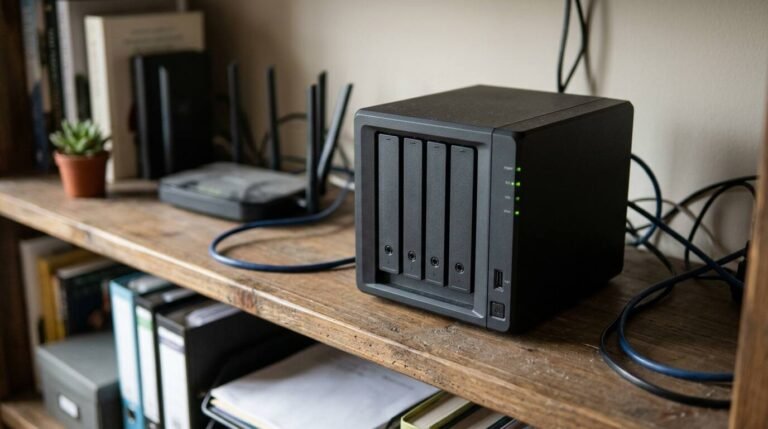
This tutorial builds a self-hosted monitoring dashboard, Uptime Kuma, as the worked example, because its project documents a Compose install and a data directory to protect. The same structure fits most single-container services. Hardware can be modest; x9m8’s Raspberry Pi home server guide and the CanaKit Raspberry Pi 5 kit review cover small boards. Check that your chosen image publishes a build for your CPU architecture before buying anything.
Anatomy of a compose file
Docker’s documentation describes the Compose model in a few parts. Services are the components, each running a container image with a given configuration. Networks let services reach each other. Volumes store persistent data. Configs and secrets deliver configuration and sensitive data as mounted files. A project is a single deployment of an application, whose name groups its resources and keeps them apart from other deployments. For a one-container service, only the services and volumes keys usually matter.
Create a folder for the project, then add a file named compose.yaml inside it.
services:
  uptime-kuma:
    image: louislam/uptime-kuma:2
    container_name: uptime-kuma
    restart: unless-stopped
    ports:
      - "127.0.0.1:3001:3001"
    volumes:
      - kuma-data:/app/data

volumes:
  kuma-data:
This follows the project’s published compose.yaml, with three deliberate changes. The image tag 2 and the unless-stopped policy are as published. The data mapping uses a named volume where the project’s file uses a ./data directory, and the README says to map /app/data to a local directory or volume, since network file systems such as NFS are not supported. The port is published on 127.0.0.1 only, which the README gives as the way to limit exposure to localhost. The container_name line is added so the backup command later has a stable name to target.
Start it with docker compose up -d. Per the README the service listens on port 3001, so with the binding above it is reachable at http://localhost:3001 from the same machine.
Volumes keep data alive
Docker’s volumes documentation states that a data volume persists after you delete a container, which is why the file declares kuma-data at the top level and mounts it into the service. Docker also lists the alternative, a bind mount, as the better fit when you need to access files from both the container and the host. Volumes are the easier choice to back up or migrate, according to the same page.
Two traps follow from that behavior. A volume without a name is anonymous, gets a random name, and is easy to lose track of. And removing volumes is a separate, explicit act, so recreating a container does not by itself delete the volume behind it.
Restart policies
The restart policy decides what Docker does when the container stops. The documented values are below.
| Policy | Behavior |
|---|---|
no | Do not restart automatically (the default) |
on-failure[:max-retries] | Restart on a non-zero exit code; optionally cap the attempts; does not restart if the daemon restarts |
always | Restart whenever it stops; after a manual stop, only when the daemon restarts or the container is restarted by hand |
unless-stopped | Like always, except a container stopped manually or otherwise is not restarted even after the daemon restarts |
For a service meant to survive reboots and still obey a deliberate docker compose stop, unless-stopped is the usual pick. That recommendation is opinion; the table above is the documentation.
Healthchecks
A restart policy reacts to a container that exits. A healthcheck notices one that is running but broken. The Compose reference shows the shape:
healthcheck:
  test: ["CMD", "curl", "-f", "http://localhost"]
  interval: 1m30s
  timeout: 10s
  retries: 3
  start_period: 40s
  start_interval: 5s
test is a string or a list whose first item must be NONE, CMD or CMD-SHELL; a plain string is treated as CMD-SHELL. The command must exist inside the image, so curl only works if the image ships it. Uptime Kuma needs no entry here: its Dockerfile already declares a HEALTHCHECK with a 60-second interval and a 180-second start period, and Compose uses the image’s definition unless you override it. Setting disable: true turns an image’s check off. The four time settings take durations such as 1m30s, as in the reference example above. Read the reference for your Compose version before relying on start_interval, which appears in that example alongside a version note.
A healthcheck also unlocks startup ordering. In a stack with a database, depends_on accepts condition: service_healthy, so the app container waits until the database reports healthy:
services:
  web:
    build: .
    depends_on:
      db:
        condition: service_healthy
        restart: true
  db:
    image: postgres:18
Updating images
Updating takes two commands. docker compose pull fetches new images for the services in the file, and accepts service names to limit the scope. Then docker compose up -d compares the result to what is running. The reference for up says Compose recreates containers when their configuration or image changes, preserving mounted volumes. Use --no-recreate to prevent it, or --force-recreate to force it.
docker compose pull
docker compose up -d
Opinion: pin a tag that matches your risk tolerance. The :2 tag follows whatever the project publishes under it, and a fully pinned version number moves only when you edit the file. Read the project’s release notes before a major jump, and take a backup first.
Backing up the volume
The Docker volumes page describes a backup using a throwaway container that mounts the volumes from the original, plus a host directory, and tars the contents. Adapted to this stack, the container is named uptime-kuma and the data path is /app/data.
docker run --rm --volumes-from uptime-kuma -v $(pwd):/backup ubuntu tar cvf /backup/backup.tar /app/dataThe result is backup.tar in the current directory. To restore, the docs create a fresh container with the volume, then untar into it with tar xvf /backup/backup.tar --strip 1 after changing into the data directory. Test a restore on a spare machine before you need one.
Copying files from a service that is writing to them can capture a half-finished state. Stopping the service for the length of the copy is the conservative approach, again an opinion and not a documented requirement. Store the archive somewhere other than the same disk; x9m8’s explainer on the 3-2-1 backup rule lays out the logic, and a rugged external drive like the one in the Samsung T7 Shield review is one way to hold the second copy.
Mistakes to avoid
- Putting service data on NFS. The Uptime Kuma README flags network file systems as not supported for its data directory, so map it to a local directory or volume.
- Binding the service port to every interface. Publishing
3001:3001exposes it on the network; the127.0.0.1:prefix keeps it local until a reverse proxy sits in front. - Writing a healthcheck command the image cannot run. A
curltest fails forever in an image withoutcurl, and the container is then reported unhealthy for a reason unrelated to the service. - Treating
up -das the whole update. The command’s--pulloption acceptsalways,missingornever, sodocker compose up -d --pull alwaysfolds the pull into the same step, but a separatepullshows download problems before containers are touched. - Skipping the restore test. A tarball that has never been unpacked is a hope, not a backup.
None of these needs special tooling. Each is a line in the file or a habit around it.
Sources
- Docker Docs, Compose application model: https://docs.docker.com/compose/intro/compose-application-model/
- Docker Docs, Compose file services reference: https://docs.docker.com/reference/compose-file/services/
- Docker Docs, Start containers automatically: https://docs.docker.com/engine/containers/start-containers-automatically/
- Docker Docs, Volumes: https://docs.docker.com/engine/storage/volumes/
- Docker Docs, docker compose up: https://docs.docker.com/reference/cli/docker/compose/up/
- Docker Docs, docker compose pull: https://docs.docker.com/reference/cli/docker/compose/pull/
- Uptime Kuma README: https://github.com/louislam/uptime-kuma
- Uptime Kuma compose.yaml and Dockerfile (GitHub): https://github.com/louislam/uptime-kuma/blob/master/docker/dockerfile