





A step-by-step Pi-hole setup guide: how DNS sinkholing works, the install, pointing your router at it, a test, what can go wrong, and what DNS blocking cannot stop.
Pi-hole calls itself “Network-wide ad blocking via your own Linux hardware,” and the claim is narrower than it sounds. It does not scan pages, strip scripts or touch video streams. It answers one kind of question, the DNS lookup, and for a list of unwanted names it answers with a dead end (Pi-hole documentation).
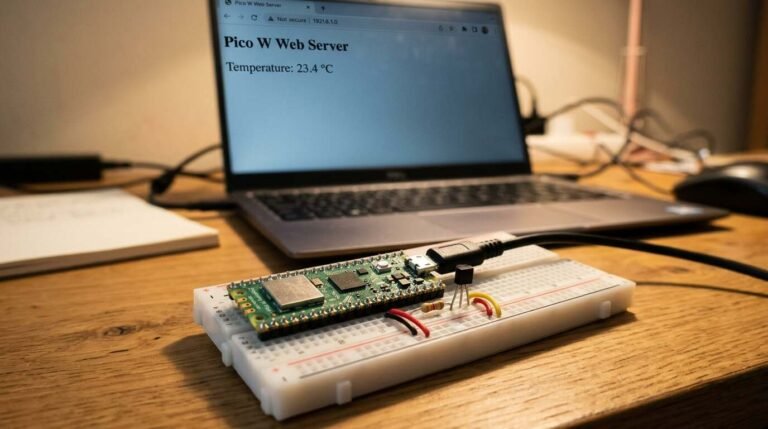
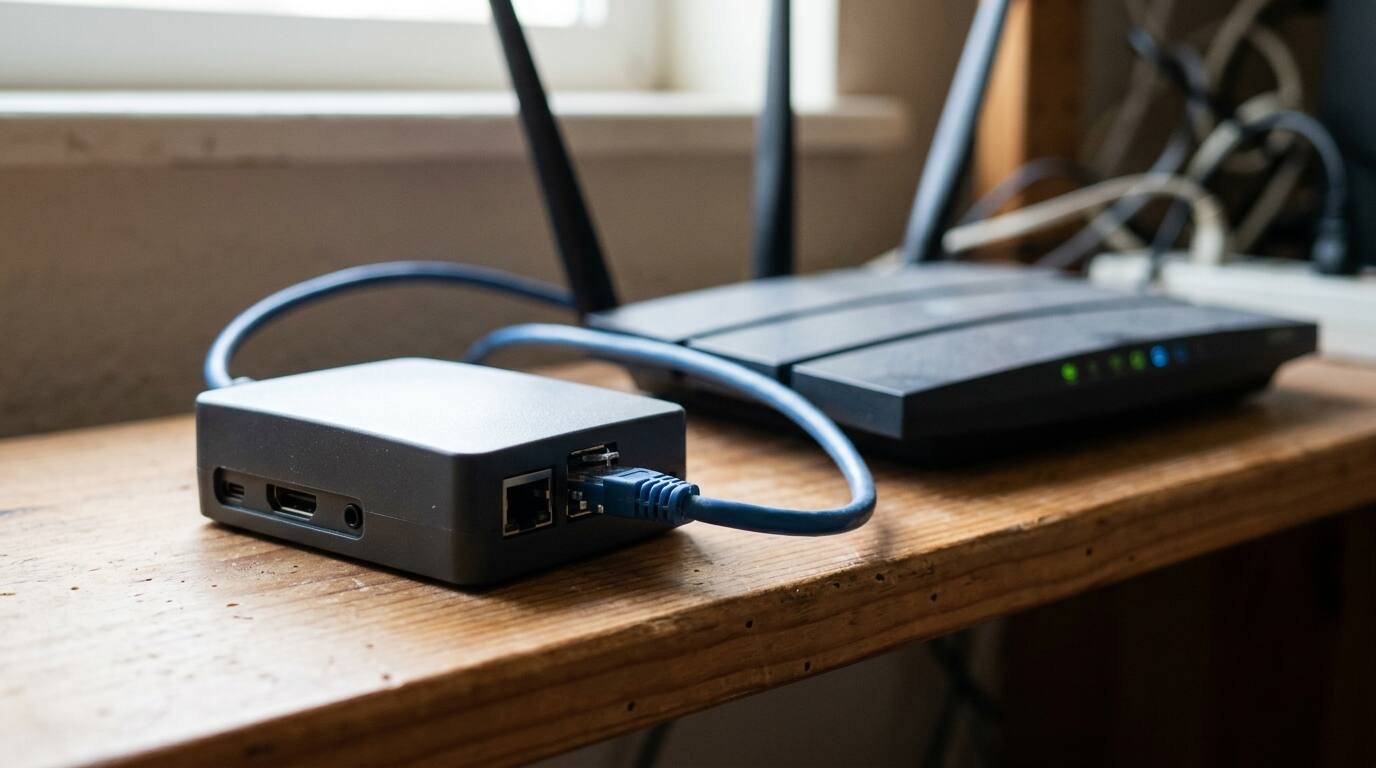
That single move reaches a long way, because every phone, TV and laptop on the network asks the same resolver where a name lives before it connects. Pointing that resolver at a small always-on box filters them all at once, with nothing installed on the clients. What follows is the install, the router change that makes it network-wide, a test, and a frank list of what goes wrong and what DNS blocking can never touch. Any hardware that runs a supported OS can be the host, and a spare Raspberry Pi is one option; the Raspberry Pi home server guide covers preparing one.
How DNS blocking works
Before a device opens a connection to a name such as an ad network, it asks a DNS server for the matching address. Pi-hole sits in that conversation as a DNS sinkhole: it intercepts requests for unwanted domains and, for names on its lists, returns a useless answer instead of the real one. The ad request then has nowhere to go.
What the useless answer looks like is configurable. FTL, the DNS engine inside Pi-hole, supports five blocking modes: NULL, IP-NODATA-AAAA, IP, NXDOMAIN and NODATA. The default, which the docs call “both the default and recommended mode,” is NULL, and it replies with the unspecified address, 0.0.0.0 for IPv4 and :: for IPv6 (blocking modes).
The lists themselves are handled by a step called gravity. It retrieves the subscribed lists and consolidates them into one list for the built-in DNS server, runs automatically each week, and can be run by hand with pihole -g (command reference).
Answers are cached as well. The default cache holds 10,000 entries, and setting the size to zero disables caching (DNS cache docs). A cached answer means a repeat lookup for the same name never leaves the Pi-hole, which is part of why the box feels quick even on modest hardware. That last point is an inference, not a measured result.
Check the requirements first
The prerequisites page is short. Plan for at least 2 GB of free storage (4 GB recommended) and 512 MB of RAM. Any hardware that runs a supported operating system will do, and the list covers Alpine, Armbian, Debian, CentOS Stream, Fedora, Raspberry Pi OS and Ubuntu, in actively maintained versions only.
Two requirements trip people up. Pi-hole needs a static IP address, though a DHCP reservation on the router is acceptable. And port 53 (TCP and UDP) must be free, so another DNS server on the host, BIND for example, has to be disabled first. The web interface wants ports 80 and 443 and falls back to 8080 and 8443 if they are taken.
Step 1: Install Pi-hole
The documented one-line installer is below. The same page warns that piping a script into bash means you cannot read it before it runs, and offers two alternatives for anyone who wants to inspect first.
curl -sSL https://install.pi-hole.net | bashTo read the code first, either clone the repository and run the script:
git clone --depth 1 https://github.com/pi-hole/pi-hole.git Pi-hole
cd "Pi-hole/automated install/"
sudo bash basic-install.sh
Or download it, open it in an editor, then run it with wget -O basic-install.sh https://install.pi-hole.net followed by sudo bash basic-install.sh. Official Docker images exist too, documented in the Docker section (install page).
Step 2: Set an admin password
The command reference shows the password being set from the command line. Leave the password off the command and it can be entered separately, so it does not appear on screen.
pihole setpasswordStep 3: Send the whole network through it
Installing Pi-hole filters nothing by itself. Devices must be told to ask it. The post-install page gives three routes, in order of preference.
- Configure the router so DHCP clients receive the Pi-hole as their DNS server. Every device that joins afterward is covered with no further intervention.
- If the router cannot change its DNS setting, use Pi-hole’s built-in DHCP server instead, and disable the router’s DHCP first.
- As a last resort, set the DNS server by hand on each device.
Homes that run a mesh system should check where the system exposes its DNS or DHCP settings; the mesh Wi-Fi setup guide covers getting one running in the first place. If Pi-hole’s own DHCP is used, UDP port 67 (IPv4) must be reachable, plus 547 for DHCPv6.
The Pi-hole host does not use Pi-hole automatically. The docs say it must be pointed at itself; on systems that use dhcpcd, that means adding static domain_name_servers=127.0.0.1 to /etc/dhcpcd.conf.
Step 4: Test it
From a client, ask the Pi-hole for a name that is on a blocklist. The Microsoft documentation for nslookup shows the form nslookup name server, where the second argument is the DNS server to ask (nslookup reference).
nslookup name-from-your-blocklist.example 192.168.1.2Substitute a real blocked name and the Pi-hole’s own address. With the default NULL mode, a blocked name should come back as 0.0.0.0. To watch queries arrive in real time, pihole tail follows the log, which the docs call useful for debugging a problematic site.
Keeping it running
pihole statusdisplays the running status of the DNS service.pihole disable 5mturns blocking off for five minutes, after which it re-enables itself.pihole enableswitches it back on early.pihole allowandpihole denyadd or remove domains by hand, and each accepts--help.pihole -upchecks the core, web interface and FTL repositories for upgrades.
What can go wrong
The host loses DNS. The post-install page warns that if Pi-hole fails while its own host depends on it, the host loses name resolution, which can block repairs such as pihole -r. The same logic applies to the household, and that part is opinion: one Pi-hole as the only resolver makes a single small computer the thing that decides whether the internet “works” for everyone.
Two DHCP servers. Turning on the built-in DHCP without disabling the router’s is the fastest way to give half the devices the wrong settings. The docs say to disable the router’s first.
Port 53 already taken. The installer cannot serve DNS if another resolver holds the port. Check for BIND or similar before starting.
A page or app breaks. Blocklists are blunt instruments, which is an opinion but a common experience. Add the domain with pihole allow, then retest. Disabling blocking for a few minutes with the timed form is a quick way to confirm Pi-hole is the cause.
Address drift. If the Pi-hole’s address changes, every device pointing at the old one loses DNS. This is why the prerequisites insist on a static address or reservation.
What DNS blocking cannot do
Ads that share a name with the content. The Pi-hole FAQ on YouTube states the reason plainly: “ads are typically served from the same domain as the video is.” DNS sees only the name, so it cannot separate an ad request from a video request on the same host, and blocking the name can break playback (Pi-hole FAQ).
Lookups that skip the router. Browsers can encrypt DNS over HTTPS to a resolver of their own choosing, and then the network’s DNS server never sees the query. Mozilla documents one countermeasure: the canary domain use-application-dns.net. Firefox resolves it using the operating system’s DNS servers, and a negative result, meaning a response code other than NOERROR or a NOERROR with no A or AAAA records, signals that DoH should be disabled. The signal applies only where DoH is on by default, not where a user turned it on personally (Mozilla support).
The wider point is that DNS is a channel, and what rides on it is not always benign. The DNS lookup containment story is a reminder of how much a name query can carry. Filtering at this layer is a useful first cut, not a complete defense.
Sources
- Pi-hole docs: Basic install
- Pi-hole docs: Prerequisites
- Pi-hole docs: Post-install
- Pi-hole docs: FTLDNS blocking mode
- Pi-hole docs: The pihole command
- Pi-hole docs: FTLDNS DNS cache
- Pi-hole documentation home
- Pi-hole FAQ: How do I block ads on YouTube?
- Mozilla Support: Canary domain use-application-dns.net
- Microsoft Learn: nslookup