







Learn how to set up mesh Wi-Fi in five steps: map dead zones, place the main node, run setup, add satellites, and test the coverage you get.
A mesh Wi-Fi system replaces one router with a main unit and several satellite nodes that work together under a single network name. When it is set up well, you walk from room to room and your phone keeps a strong connection without ever switching networks by hand. When it is set up badly, you get the same dead zones you started with.
Placement matters more than brand. This guide covers the five steps that decide whether a mesh system works: finding the dead zones, placing the main node, running the app setup, positioning the extra nodes, and testing the result. The exact screens depend on the vendor, so follow your system’s app wherever it differs.
What You Need
- A mesh Wi-Fi kit with a main node and one or more satellites
- Your modem or internet gateway and an Ethernet cable
- A smartphone for the setup app
- Your internet account details if your provider requires them
Step 1: Map Your Dead Zones
Before you buy or place anything, walk through your home with your phone and a free Wi-Fi speed test app. Note which rooms have weak or no signal, and where the current router sits.

Write the weak rooms down on a rough floor plan. Dense walls, floors, and large metal objects such as fridges and mirrors are the usual culprits, and the plan tells you where the satellites should go.
Step 2: Place and Connect the Main Node
Connect the main node to your modem with an Ethernet cable, plug it in, and put it in a central, open, elevated spot. Avoid cabinets, the floor, and the back of a TV.
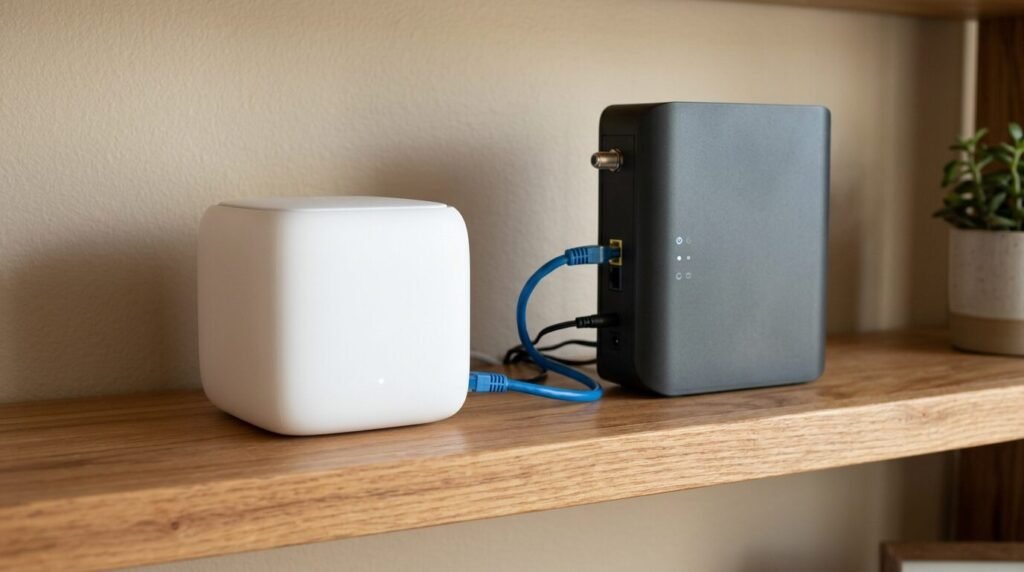
Power the modem off and on if your provider recommends it, so the new node receives a fresh connection. If your old router is a combined modem and router, it may need to be put into bridge mode to avoid double network address translation; check your provider’s instructions.
Step 3: Run the App Setup
Install the vendor’s app, create an account if asked, and let it detect the main node. Choose a network name and a strong password, and pick WPA3 or the WPA2/WPA3 mixed option if your devices support it.
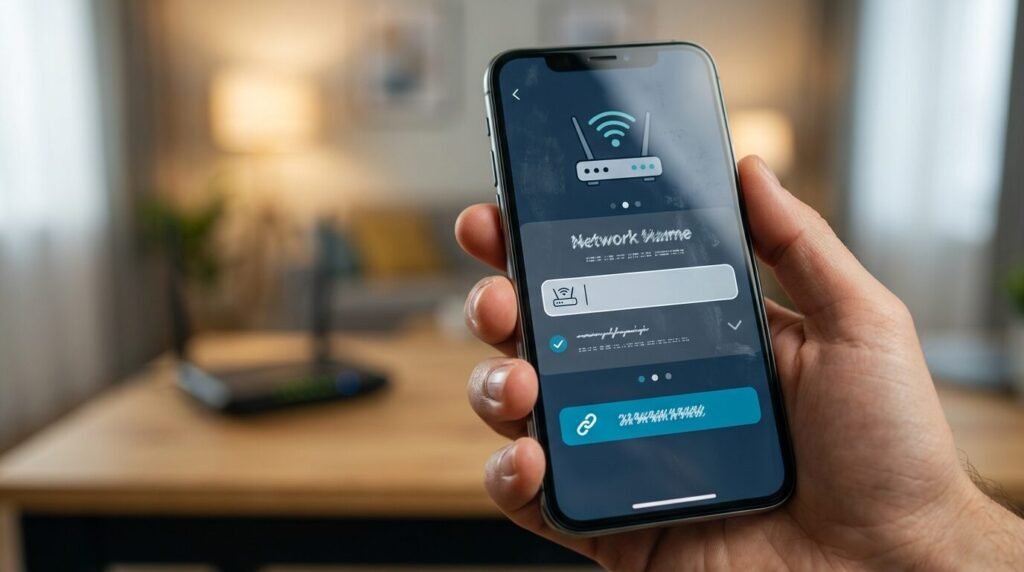
Keep one network name for the whole system. A single name lets your devices move between nodes automatically, which is the point of mesh.
Step 4: Position the Satellite Nodes
Place each satellite about halfway between the main node and the dead zone, not inside the dead zone itself. A satellite needs a good signal from its parent to pass on a good signal.

If your system supports wired backhaul, connecting satellites with Ethernet frees the radios for your devices and usually improves speed and stability. Wi-Fi backhaul is fine when running cable is not practical.
Step 5: Test and Fine-Tune
Repeat your room-by-room speed test and compare it with the first walk-through. Check the app for firmware updates and install them, since mesh vendors often improve roaming and stability this way.

If one room is still weak, move the nearest satellite a few feet and test again. Small shifts can make a bigger difference than a new purchase.
Troubleshooting
- If a satellite keeps dropping, move it closer to its parent node
- If speeds are slow near the main node, check the Ethernet cable and the modem connection
- If some devices will not connect, try the 2.4 GHz band for older gadgets
- If the app cannot find the node, restart the node and keep your phone close
Frequently Asked Questions
Do I need mesh Wi-Fi? A single good router is enough for many small homes. Mesh helps in larger or oddly shaped spaces.
How many nodes do I need? Start with the kit’s recommendation for your square footage, then adjust after testing.
Does mesh slow down the internet? Wireless backhaul can cost some speed per hop. Wired backhaul avoids most of that.
Is a range extender the same thing? No. Extenders often create a separate network name and cut throughput, while mesh nodes are designed to work as one system.
Bottom Line
Mesh Wi-Fi works when you plan the placement and test as you go. Map the weak rooms, wire the main node, put satellites in the middle of the gaps, and keep one network name. Ten minutes of testing beats another hundred dollars of hardware.