




A question-and-answer guide to a first Wireshark capture: what you may legally capture, capture versus display filters, spotting a DNS lookup and following a TCP stream.
Packets are the unit of everything a network does. A web page arrives as a run of them, and a name lookup is a short exchange of them. Wireshark records them and lets you open each one, field by field, which turns “the network is slow” or “what is this device talking to” into something you can look at.
This guide is organized around the questions that tend to bring people to a first capture: whether it is allowed, how to start, what the filters do, how to spot a DNS lookup, and how to follow a conversation between two machines. It draws on the Wireshark User’s Guide and the project wiki, and every command or filter below appears in those pages. Nothing here is a record of a hands-on session.
Am I allowed to capture this network?
Only on networks you own or have clear authorization to monitor. That is the ethical rule, and the law points the same way.
The U.S. federal wiretap statute, 18 U.S.C. § 2511, makes it an offense to intentionally intercept, or try to intercept, a wire, oral or electronic communication, with penalties of a fine, up to five years in prison, or both. It carves out an exception for a private person who is a party to the communication, or where one party has given prior consent. The exception does not apply if the interception is made to commit a criminal or tortious act (Cornell LII).
Read that carefully, because the consequence is not obvious. Owning the router does not by itself make you a party to a guest’s or a housemate’s conversation. The cautious reading, which is interpretation and not legal advice, is to capture your own devices, on your own network, with the knowledge of anyone whose traffic could appear. Other countries and U.S. states have their own rules, so check the local ones before capturing anywhere that is not clearly yours.
Privilege matters too. The Wireshark wiki says capturing requires an account with sufficient privileges, and it calls running Wireshark as Administrator “very insecure,” because an exploit in the program would then run with full admin rights. The recommended pattern is a limited account, with elevation only for the processes that need it (CapturePrivileges).
How do I start my first capture?
Wireshark can capture from different kinds of network hardware, Ethernet and 802.11 among them, and it can listen on several interfaces at once. On the Welcome Screen, pick the interface from the list of available capture interfaces; hovering over one shows its IPv4 and IPv6 addresses and its capture filter, and the small activity graph beside each name hints at which interface is carrying traffic (Capture Interfaces).
Two options in the Capture Options dialog are worth understanding before you click. Promiscuous mode is a per-interface setting, and the global “Enable promiscuous mode on all interfaces” box overrides each interface’s own. Monitor mode, for Wi-Fi, “lets you capture full, raw 802.11 headers”; whether it works depends on the interface, hardware, driver and operating system, and enabling it may disconnect you from your wireless network (Capture Options).
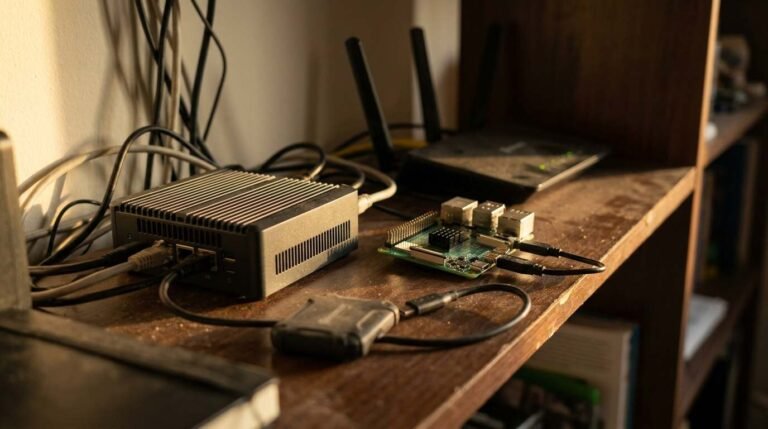
Start modestly. A laptop capturing its own traffic on its own connection, while it loads one page, produces a small file that is easy to read. A home server is a convenient place to practice too; the Raspberry Pi home server guide describes setting one up.
There is also a way to practice with no legal questions at all. The wiki’s DNS page points to its SampleCaptures page for ready-made DNS capture files, which can be opened and read like any live capture.
What am I looking at on the screen?
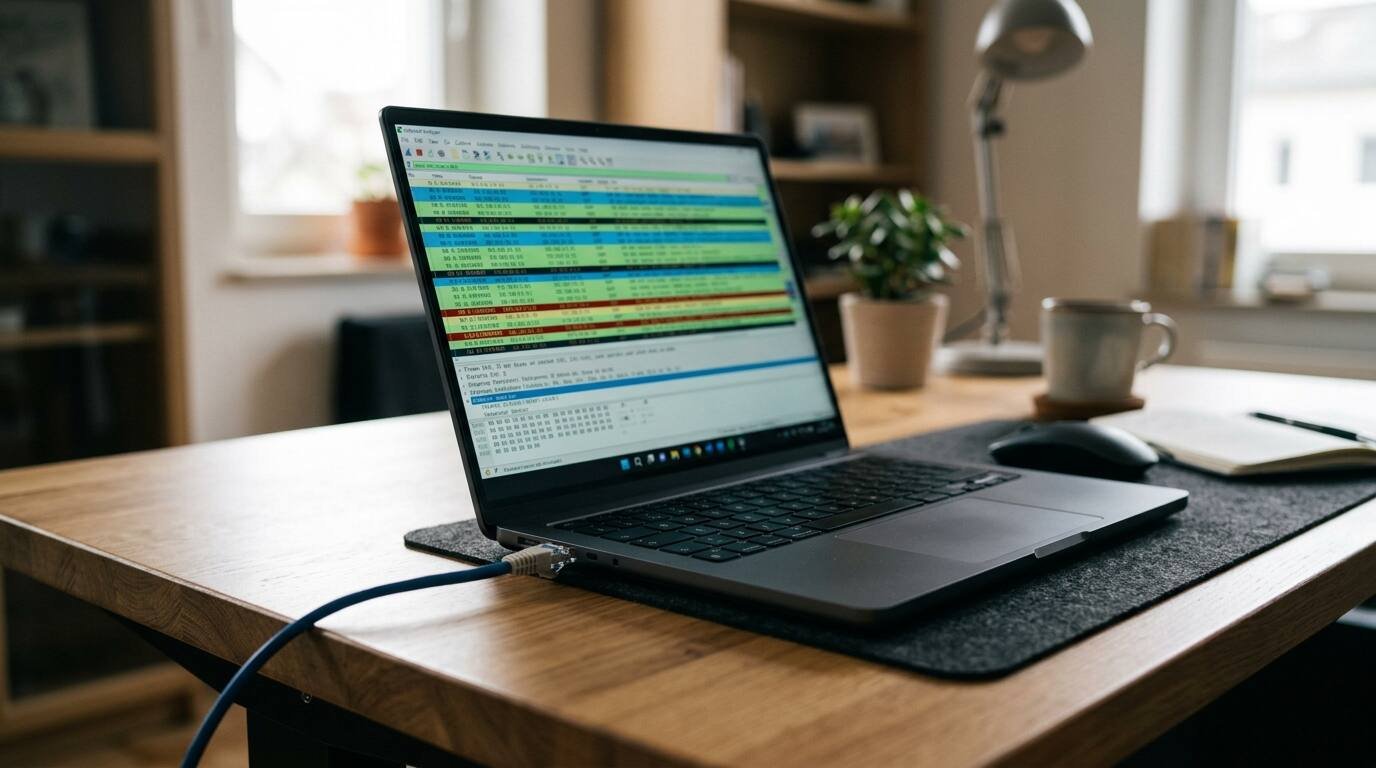
The main window has three panes. The Packet List shows “a summary of each packet captured,” one line per packet. Click one, and the Packet Details pane breaks that packet into its fields, while the Packet Bytes pane shows the raw data and highlights whatever field is selected in the details (Main window). Most reading is clicking a line in the top pane and expanding a layer in the middle one.
What is the difference between a capture filter and a display filter?
A capture filter decides what gets recorded at all. A display filter decides what you see of what was recorded. The wiki puts the warning bluntly: capture filters such as tcp port 80 “are not to be confused with” display filters such as tcp.port == 80 (CaptureFilters).
- Capture filters use the libpcap filter language, are typed in Capture Options, are set before the capture starts, and cannot be changed during it. Packets that do not match are never saved.
- Display filters go in the toolbar above the packet list, can be changed at any time, and hide packets without deleting them.
Capture-filter examples from the User’s Guide:
Primitives combine with the form [not] primitive [and|or [not] primitive ...], which is how the second example below is built.
host 10.0.0.5
tcp port 23 and host 10.0.0.5
port 53
The first matches packets to or from that address, the second narrows to Telnet traffic on one host, and the third, per the wiki, captures only DNS traffic. Display filters have a different vocabulary. The display filter chapter shows tcp, ip.addr==192.168.0.1 and tcp.port in {80, 443, 8080}, the last being shorthand for the three-way comparison joined by ||.
A reasonable habit, and an opinion, is to capture broadly and filter on display, since a capture filter can silently exclude the packet that explains the problem. The exception is a long capture on a busy link, where a narrow capture filter keeps the file manageable.
How do I spot a DNS lookup?
DNS uses port 53 on TCP and UDP. Type dns into the display filter toolbar and Wireshark shows only DNS-based traffic (DNS wiki page). Each lookup is a query and a response, and the Packet Details pane shows the name asked about and, in the reply, the answers.
dns
dns.qry.name contains "example"
The second filter narrows the list to queries whose name contains the text you choose; dns.qry.name is a real field name in the User’s Guide, which also lists dns.a as the field for an “A” record in a response. A device that looks up the same unfamiliar name repeatedly, or a name you do not recognize, is a lead worth following. It also explains why DNS keeps showing up in security writing, including the story of an AI agent that escaped a sandbox through a DNS lookup.
How do I follow a TCP stream?
Select a packet that belongs to the conversation you care about, then choose an option under Analyze, Follow. The packet list changes to a display filter that selects all the packets in the current stream, and a window shows the exchange with client-to-server traffic in red and server-to-client traffic in blue; the colors come from the active theme. Choosing Back restores the previous filter, while Close keeps the stream filter applied (Following Protocol Streams).
Reading a stream is also a good moment to think about what you are reading. Whatever the window displays belongs to the people who sent it, which loops back to the first question. For the certificate machinery behind HTTPS connections, the TLS certificate audit guide explains what is being checked and when it expires.
What if the capture is empty or confusing?
- Check privileges first. Without sufficient privileges the capture may not start, per the wiki page above.
- Check the interface. The activity graph beside each interface name on the Welcome Screen shows which one is carrying traffic.
- On Wi-Fi, remember that monitor mode may disconnect the machine from its wireless network.
- Look at the filters. A capture filter that is too narrow means the missing packets were never saved; a display filter that is too narrow only hides them.
Sources
- Wireshark User’s Guide
- Wireshark User’s Guide: Capture Interfaces
- Wireshark User’s Guide: Capture Options
- Wireshark User’s Guide: The Main window
- Wireshark User’s Guide: Filtering while capturing
- Wireshark User’s Guide: Building display filter expressions
- Wireshark User’s Guide: Following protocol streams
- Wireshark Wiki: CaptureFilters
- Wireshark Wiki: Capture privileges
- Wireshark Wiki: DNS
- Cornell LII: 18 U.S. Code 2511