






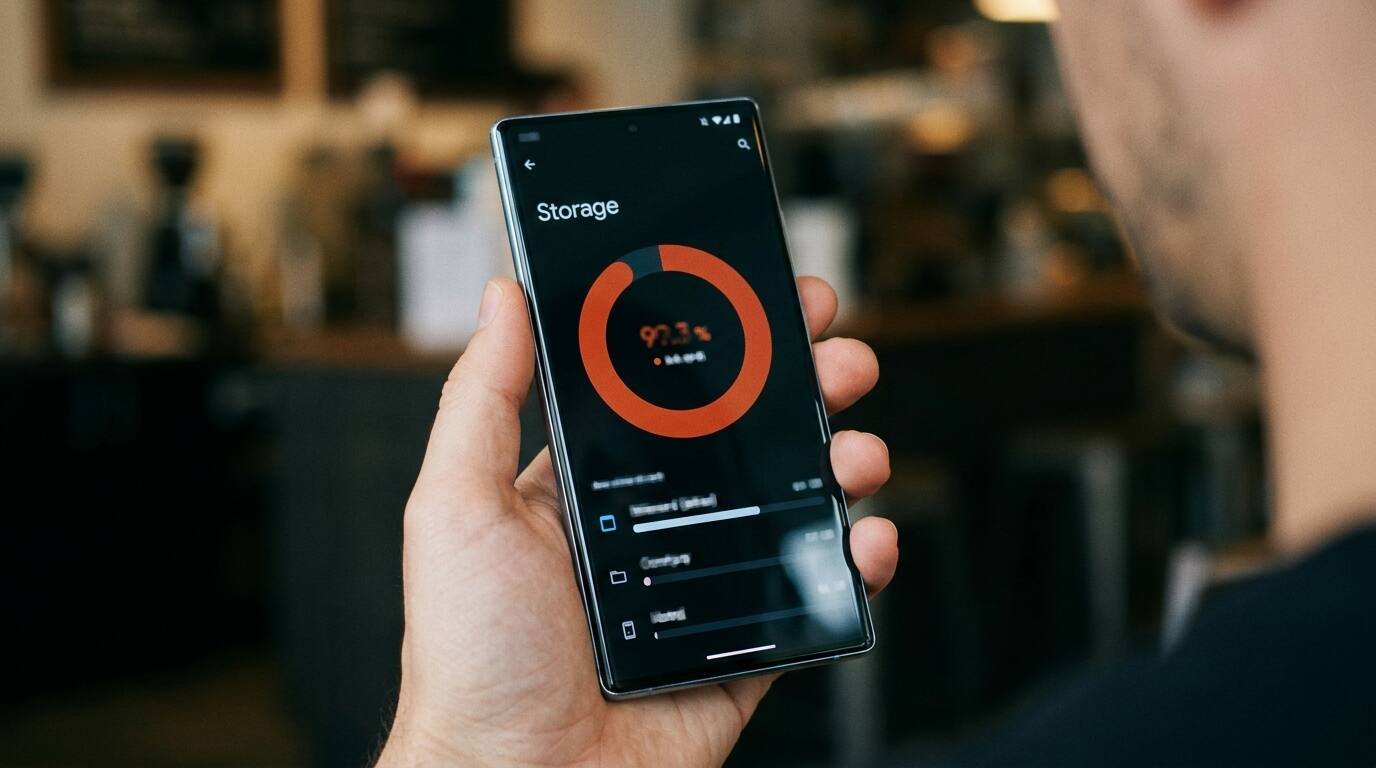
Learn how to free up storage on Android in five steps: see what is using space, clear caches, back up photos, delete large files, and keep it clean.
If you need to free up storage on Android, the fix is rarely deleting your favorite photos. Most full phones are clogged with cached app data, forgotten downloads, duplicate media, and apps nobody opens anymore. Once you know where the space is going, you can usually recover several gigabytes in a quarter of an hour.
This guide works from the safest wins to the more careful ones, and it shows how to back up before you delete anything. Menu names vary by manufacturer and Android version, so if a label is different on your phone, use the search box at the top of Settings.
What You Need
- Your Android phone and its screen lock
- A Wi-Fi connection for backing up photos
- A Google account or another cloud service with room for your photos
- About 15 minutes
Step 1: See What Is Using Your Space
Open Settings, then Storage. The screen breaks usage into categories such as apps, images, videos, audio, and system files. Tap a category to see the biggest items.

Note the two or three largest categories. Spending your time there pays off far more than clearing small items one by one.
Step 2: Clear Caches and Remove Unused Apps
Open Settings, then Apps, and sort by size. Tap a large app, open its storage settings, and choose Clear cache. A cache is temporary data the app can rebuild, so clearing it is safe. Avoid Clear data unless you want to reset the app and lose its local information.

Uninstall apps you have not opened in months. Many phones, and the Google Play Store under Manage apps and device, can show apps you rarely use so you can remove them in one go.
Step 3: Back Up and Clear Photos and Videos
Photos and videos are usually the biggest category. Turn on backup in Google Photos or your preferred cloud service and wait until it confirms that everything has been uploaded.

After the backup completes, use the free up space option in the app to remove local copies that are safely stored in the cloud. Check that a few older photos open from the cloud before deleting in bulk.
Step 4: Delete Downloads and Large Files
Open the Files app and look at Downloads and the large files view. Old installers, forwarded videos, PDFs, and duplicates often account for gigabytes.
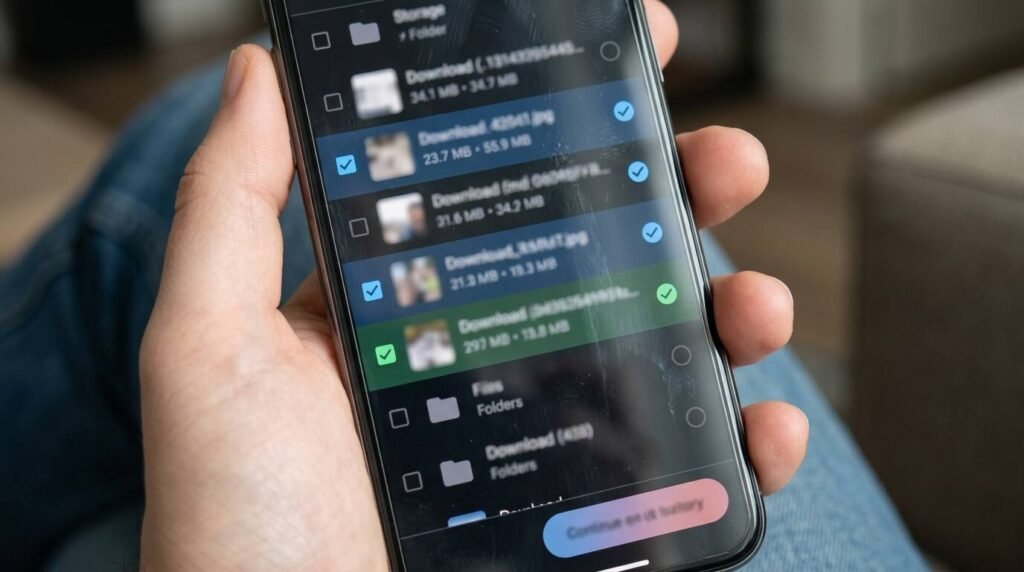
Delete what you recognize and move anything you want to keep to cloud storage or your computer. Empty the trash or recycle folder afterward, since deleted files may sit there for a while.
Step 5: Stop the Clutter From Returning
Turn off automatic media downloads in messaging apps, or limit them to Wi-Fi, because chat apps quietly save every photo and video you receive. Most of them also have a storage management screen that shows the biggest chats.
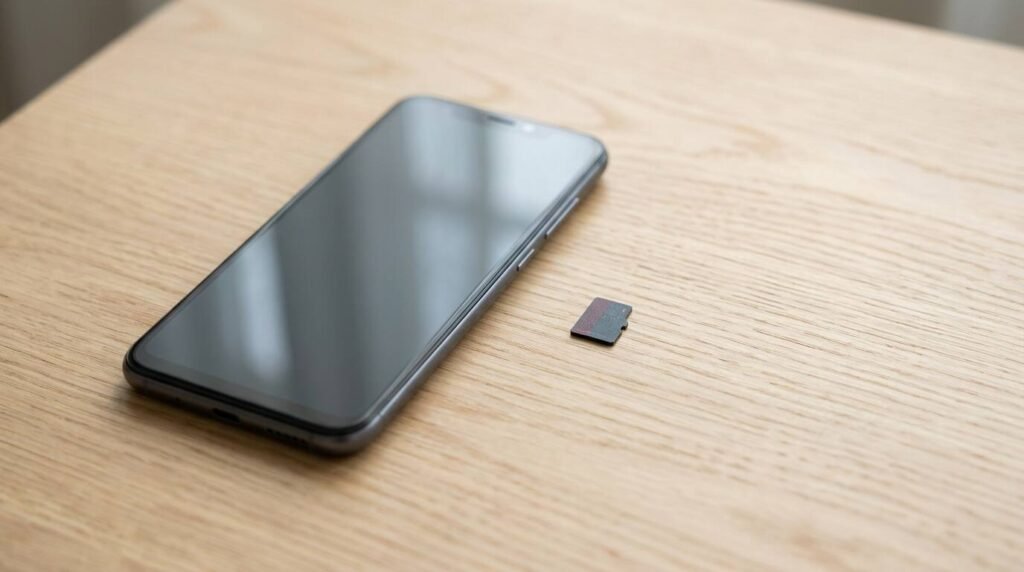
If your phone has a memory card slot, you can store camera photos and downloads there. Set a reminder to repeat this cleanup every few months.
Troubleshooting
- If storage does not change after deleting files, restart the phone and check again
- If the system category looks huge, check for a pending update that has downloaded in the background
- If an app breaks after clearing data, sign in again or reinstall it
- If the phone is still full, consider moving photos to a computer or buying more cloud space
Frequently Asked Questions
Is clearing the cache safe? Yes. The app rebuilds it as needed, though it may open a little slower the first time.
Will deleting photos from the phone delete them from the cloud? It depends on the app. Use the dedicated free up space feature so cloud copies stay put, and confirm the backup first.
How much free space should I keep? Try to keep at least 10 to 15 percent free so the phone stays responsive and updates can install.
Do storage cleaner apps work? The built-in tools do the same job without ads or extra permissions, so most people do not need a third-party cleaner.
Bottom Line
Check what is using space, clear caches, back up and trim photos, delete downloads, and cap automatic downloads. Do that, and a full phone turns into a ten-minute chore instead of a daily annoyance.