







Learn the 3-2-1 backup rule and how to apply it: find your key files, make a local copy, add a second media type, go offsite, and test a restore.
The 3-2-1 backup rule is the simplest dependable plan for protecting your files: keep three copies of your data, on two different types of storage, with one copy somewhere else. A single backup drive in the same room as your computer is not enough, because a fire, theft, power surge, or ransomware attack can take both at once.
The rule is old, but it still holds up because it works against many kinds of failure rather than one. This guide turns it into five practical steps for a home or small office. Menu names depend on your operating system, so follow the closest equivalent on your machine.
What You Need
- An external hard drive or SSD with more space than your data
- A second storage type, such as a second drive, a network storage device, or a cloud plan
- An internet connection for the offsite copy
- A calendar reminder tool
Step 1: Identify What Needs Protecting
Make a list of folders that would hurt to lose: documents, photos, videos, financial records, and work projects. Check the total size so you buy storage that fits.
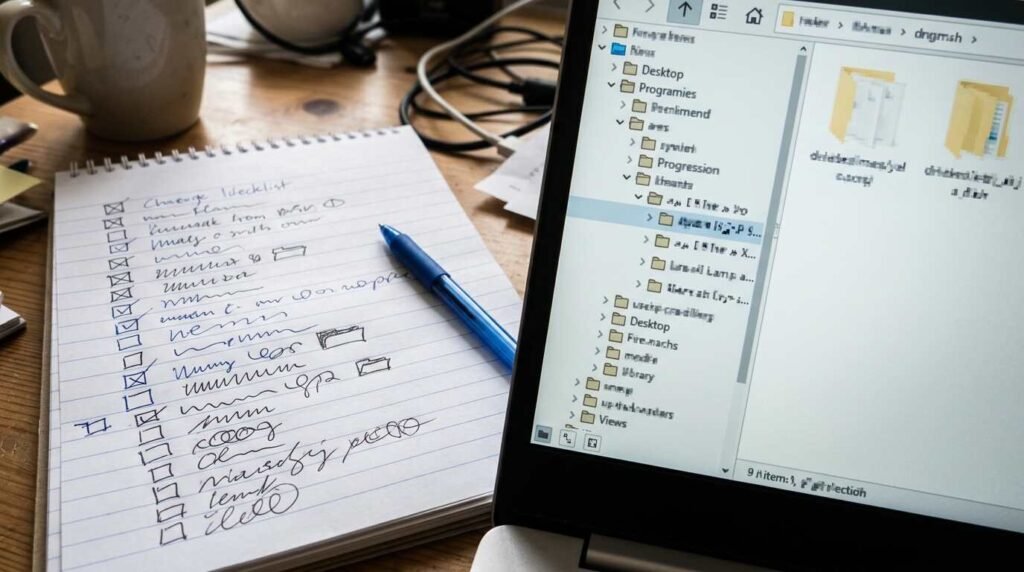
Do not try to back up everything blindly. Applications can be reinstalled, but your own files cannot, so concentrate on those first.
Step 2: Make the Local Backup
Connect an external drive and use the built-in tool: File History or Windows Backup on Windows, and Time Machine on a Mac. Point it at the drive and let it run on a schedule.
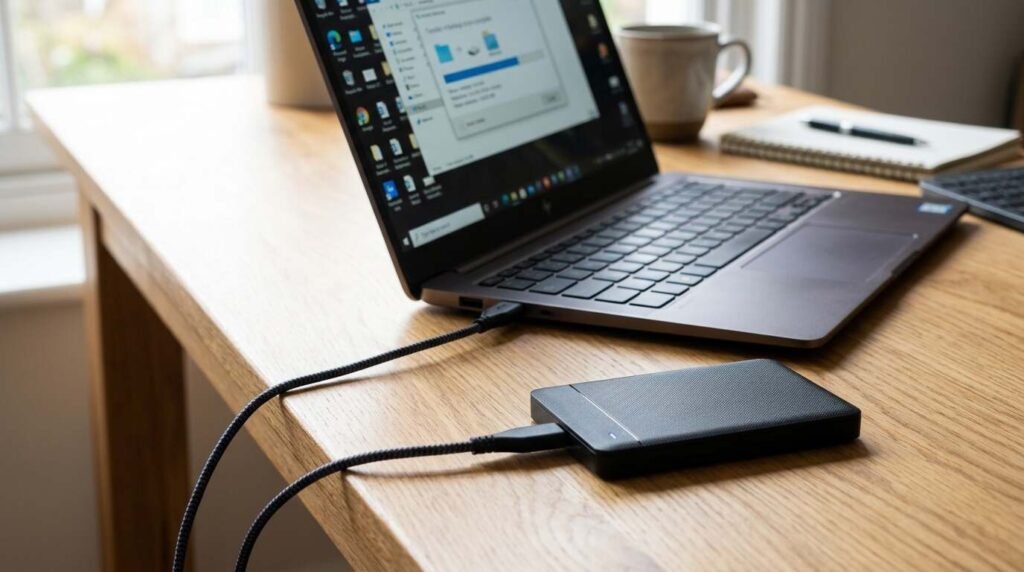
This gives you your second copy, the first being the original on your computer. Automatic, versioned backups are better than manual copies because you will not forget them.
Step 3: Add a Second Type of Storage
Now copy the same data to a different kind of media. That could be a second external drive from a different manufacturer, a network storage device in the house, or a cloud service.
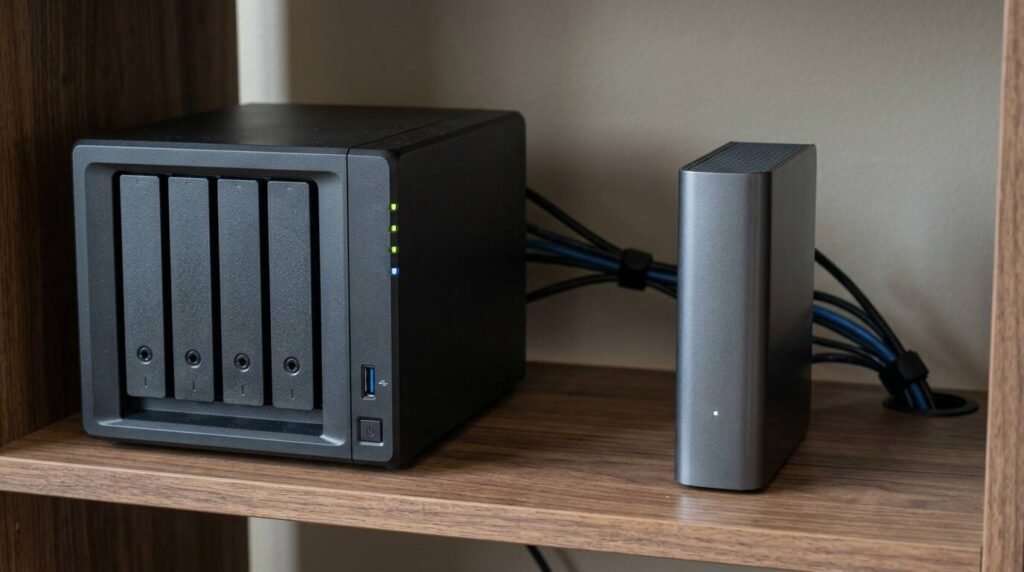
Using different media guards against a single type of failure, such as a bad batch of drives. This is what the two in the 3-2-1 rule stands for.
Step 4: Send One Copy Offsite
The one in the rule means at least one copy lives away from your home or office. A cloud backup service is the easiest way, and a drive stored at a relative’s home or a safe deposit box also works.

If you use a cloud service, turn on version history. That way, if ransomware encrypts your files and syncs the damage, you can still roll back to a clean version.
Step 5: Test the Restore and Schedule Checks
Pick a few files and restore them from each backup to a different folder. Open them to confirm they are intact. A backup that has never been restored is an assumption.
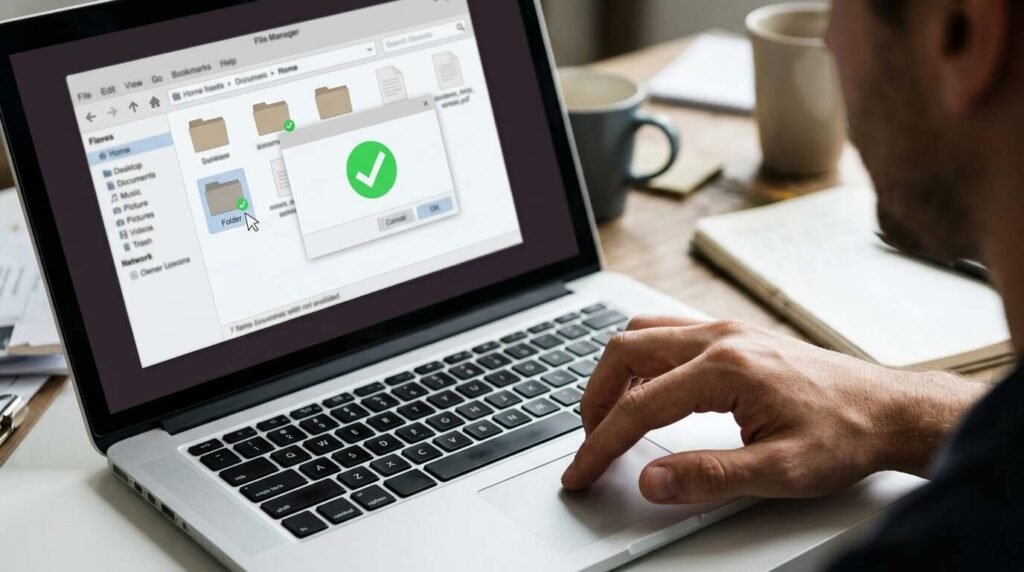
Set a calendar reminder every three months to check that the backups are still running, the drives are healthy, and your storage is not full.
Troubleshooting
- If the backup drive is full, delete old versions or buy a larger drive
- If the cloud upload is slow, let it run overnight and start with the most important folders
- If a drive makes clicking sounds, replace it immediately and restore from another copy
- If the backup tool reports errors, fix them the same day instead of ignoring them
Frequently Asked Questions
Is cloud sync the same as a backup? No. Sync mirrors changes, including deletions and corruption. A backup keeps versions you can go back to.
How often should I back up? Daily for active work, and at least weekly for everything else.
Is the 3-2-1 rule enough for a business? It is a strong baseline. Many businesses add an offline or immutable copy and regular restore tests.
How big should the backup drive be? At least twice the size of the data you are protecting so it can hold multiple versions.
Bottom Line
Follow the rule in order: list your files, make a local copy, add a second kind of storage, send one copy offsite, and test a restore. It costs a modest amount and an afternoon of setup, and it protects you from the failures that actually happen.