






A slow PC is usually fixable. Learn five free steps to speed up Windows 11: updates, startup apps, storage cleanup, Task Manager, and power mode.
Most people who want to speed up Windows 11 do not need a new computer or a paid cleaner app. A PC usually slows down for ordinary reasons: too many programs launching at startup, a nearly full drive, a pending update, or one runaway process eating the processor. All of those can be checked with tools already built into Windows.
The five steps below go from the quickest and safest fix to the more involved one. None of them touch the registry or require third-party downloads. Menu labels vary a little between Windows 11 builds, so use the search box in Settings if a label is not where you expect it.
What You Need
- About 20 minutes
- Administrator rights on the PC
- A backup of anything important, as good practice before changing settings
Step 1: Restart and Install Pending Updates
Open Settings, choose Windows Update, and click Check for updates. Install whatever is waiting, including driver updates listed under advanced options, then restart even if Windows does not insist.
Many PCs run for weeks without a real restart. A restart clears memory leaks and finishes background installs that quietly consume resources, and it is the single cheapest fix on this list.
Step 2: Cut Down Startup Apps
Open Settings, then Apps, then Startup. Each entry shows an impact label. Turn off anything you do not need the moment you sign in, such as chat clients, game launchers, and updaters you can open by hand.
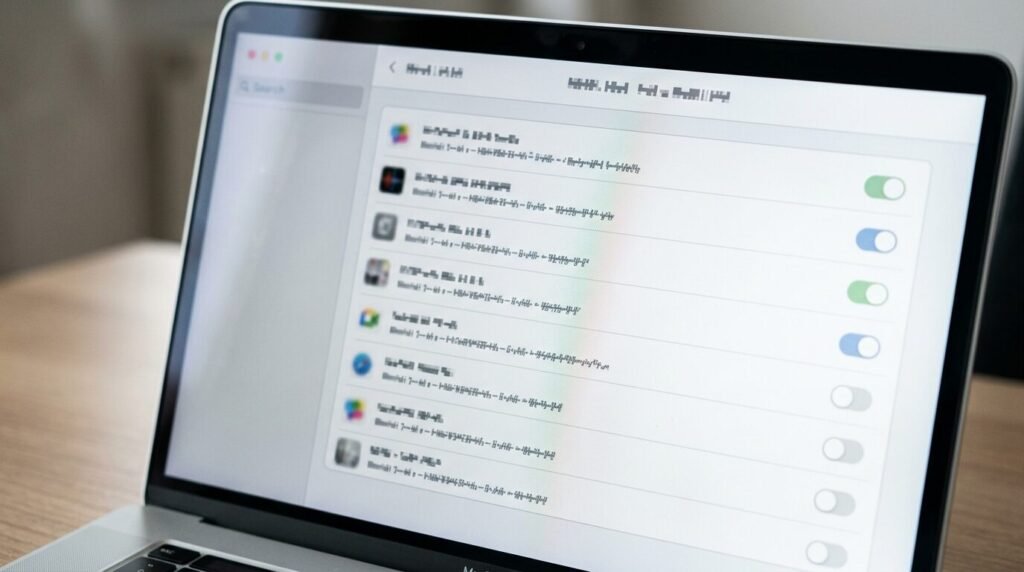
Leave your antivirus, touchpad driver, and cloud-storage client alone if you rely on them. Disabling a startup entry does not uninstall the app; you can switch it back on at any time.
Step 3: Free Up Disk Space
Go to Settings, System, then Storage. Wait for the scan, then open Temporary files and review the list before removing anything. Turn on Storage Sense to clean up automatically.
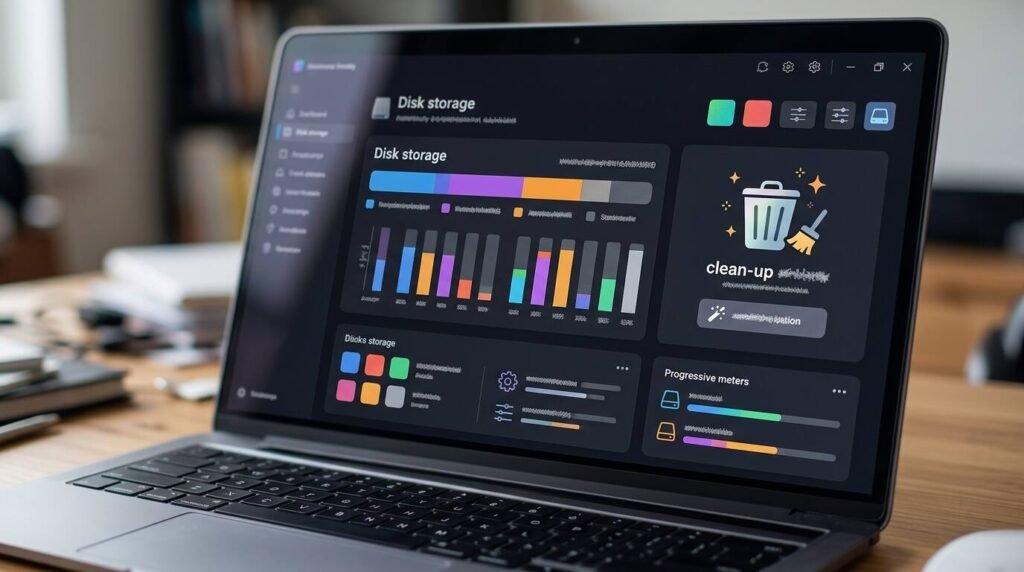
Aim to keep at least 15 to 20 percent of the drive free. A nearly full drive slows everything down, especially a traditional hard disk. If your PC still has a spinning hard drive, replacing it with an SSD is the largest speed upgrade available.
Step 4: Find What Is Hogging Resources
Press Ctrl+Shift+Esc to open Task Manager and stay on the Processes tab. Click the CPU, Memory, and Disk column headers in turn to sort by the heaviest users.
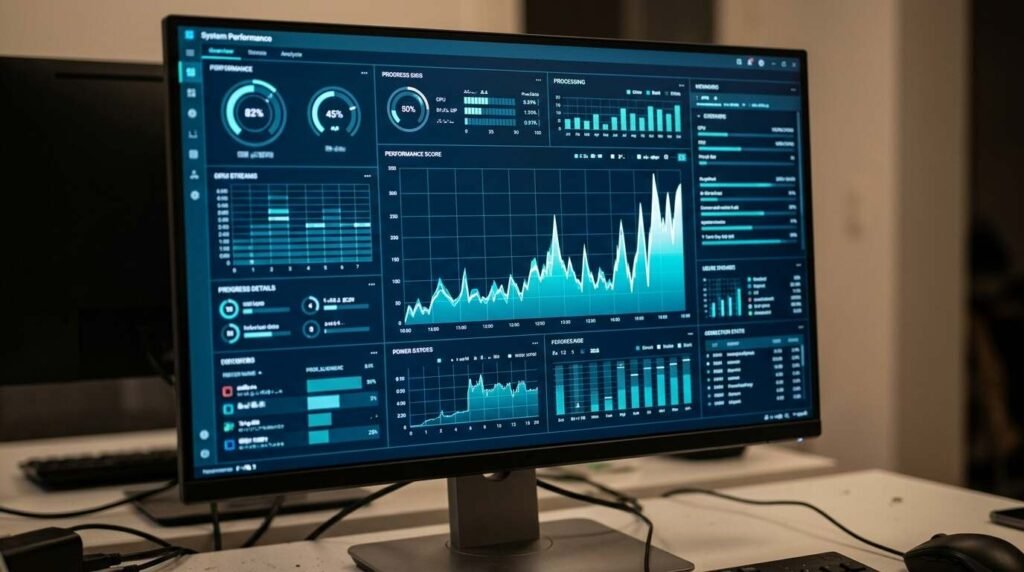
If one app is using far more than it should, close it from here. If a Windows component is constantly high, restart the PC and check again. Persistently high disk use on an old hard drive points to the drive itself as the bottleneck.
Step 5: Scan for Malware and Check Power Mode
Open Windows Security, choose Virus and threat protection, and run a quick scan. Unwanted software that runs hidden in the background is a common cause of sudden slowdowns.

Then open Settings, System, Power and battery, and look at Power mode. On a laptop, Best performance can help when plugged in, though it will use more battery.
Troubleshooting
- If the PC is still slow after these steps, check how much memory it has; 8 GB is a practical minimum today
- If Task Manager shows the disk pinned at 100 percent, suspect a failing or very old drive
- If a recent update caused the slowdown, check the update history and consider rolling back
- If nothing helps, back up your files and use Reset this PC
Frequently Asked Questions
Are registry cleaners worth using? No. They carry real risk and rarely make a measurable difference.
Does a restart really matter? Yes. Fast Startup can keep part of the previous session alive, so a full restart is more thorough than shutting down.
Should I disable visual effects? It can help on weak hardware. Search for Adjust the appearance and performance of Windows and try the performance option.
How much RAM do I need? 8 GB works for light use, and 16 GB is more comfortable for browsing with many tabs and for multitasking.
Bottom Line
A slow Windows 11 PC is usually a maintenance problem, not a hardware one. Work through the five steps in order, test after each, and stop when the machine feels right. Keep the checklist and repeat it every few months.