






Apple's Welcome Home launch lands October 13. Before any new hub arrives, count your Thread networks, check Wi-Fi channel overlap, and test mDNS and IPv6 with a symptom-to-fix table.
Apple has put a date on it. On October 8 the company announced a “Welcome home” launch for October 13, according to TidBITS, with marketing chief Greg Joswiak fronting the announcement. What ships is another matter. A touchscreen home hub, refreshed Apple TV and HomePod mini models, and LG-made accessories are all rumored, and none is confirmed. Our launch explainer sorts the confirmed from the guessed.
This guide skips the guessing. Whatever Apple unveils will land inside a network you already run, and in smart homes the failures usually live in the radio and network layers rather than the gadget.
So audit first. The method below is built as symptom, test, fix, and it costs nothing but a terminal and twenty minutes.
Thread in Four Facts
- It is an IP network. Thread is a low-power mesh in which devices use IPv6 both inside and outside the mesh, per the Home Assistant Thread documentation. Each node carries its own address.
- The radio is IEEE 802.15.4 in the 2.4 GHz band. Thread channels run 11 to 26, and Home Assistant’s documentation warns that channels 11 to 24 can overlap common Wi-Fi channels.
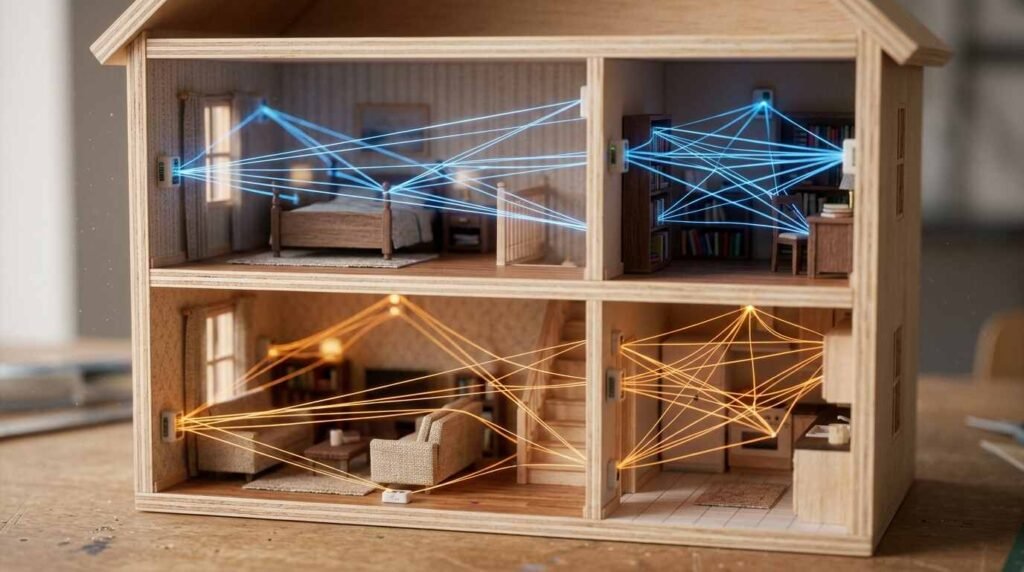
- A border router forwards; it does not control. It moves packets between the Thread mesh and Wi-Fi or Ethernet without reading them. Matter or HomeKit does the controlling.
- One network can have several border routers. If one goes offline, another keeps the mesh reachable, according to matter-smarthome.de.
That third point trips people up. A device can be a border router, a Matter controller, or both, and the label on the box rarely says which. The source above notes that some products combine the roles while others, including certain Amazon and Google routers and Nanoleaf’s border routers, only bridge Thread and need a separate hub for automations and remote access.
Step 1: Inventory Your Border Routers
Anything Thread-capable with constant power and a Wi-Fi or Ethernet link can serve. The same source lists a selection of devices that do, shown below. It is a selection, not a complete census, and product lines change.
| Ecosystem | Border routers named by the source |
|---|---|
| Apple Home | Apple TV 4K (Gen 2), Apple TV 4K (Gen 3, 128 GB with Ethernet), HomePod mini, HomePod (Gen 2) |
| Google Home | Google TV Streamer, Nest Hub (Gen 2), Nest Hub Max, Nest Wifi Pro |
| Amazon Alexa | Echo (Gen 4), Echo Studio, Echo Hub, eero 6 and 6+, eero Pro 6 and 6E, eero Max 7 |
| IKEA | Dirigera hub |
| Aqara | Hub M3, Camera Hub G5 Pro, Doorbell Camera Hub G410 |
| SmartThings | Samsung SmartThings Hub (Gen 3), SmartThings Station, Aeotec Smart Home Hub |
| Home Assistant | Home Assistant Green with Connect ZBT-1, Home Assistant Yellow |
Count what you own. Then confirm each unit is on constant power and wired or on stable Wi-Fi, because a border router that sleeps or drops off the network takes its share of the mesh with it.
Step 2: Count Your Thread Networks
Here is the failure that causes the most grief. Each vendor typically forms its own Thread network with its own credentials, and Home Assistant’s documentation states plainly that devices can’t roam between the Thread networks. Buy a sensor through one ecosystem and a plug through another, and you may be running two meshes that cannot help each other. Matter-smarthome.de adds that Amazon keeps its credentials to itself, so border routers from other brands cannot join Amazon’s mesh, citing Nanoleaf’s support documentation.
Thread border routers announce themselves over mDNS, so you can list them from any computer on the same network as your phone. On a Mac:
dns-sd -B _meshcop._udp local.On Linux with Avahi installed:
avahi-browse -rt _meshcop._udpEach entry is one border router. The record attached to it carries the network name and extended PAN ID, so two routers sharing a name belong to one mesh, and different names mean parallel meshes. Home Assistant’s documentation notes these announcements do not contain credentials, which is why a network can appear in discovery without being usable. A network that Home Assistant creates itself is named in the pattern ha-thread-xxxx, where the last four characters are the PAN ID.
Write down the count. You will compare it after the launch.
Step 3: Check Wi-Fi Channel Overlap
Thread and Wi-Fi share the 2.4 GHz band. Home Assistant’s documentation says Thread channels 11 to 24 can overlap Wi-Fi channels such as 1, 6, and 11, and that channel 26 is the least likely to see interference. Repeated ChannelAccessFailure entries in a border router’s log suggest a busy channel.
Two cautions apply before you change anything. Some devices may not follow a channel change on their own and may need to be re-added. And the change can be reverted only by changing the channel again. The sensible order is to settle the channel before you pair new devices, not after you have thirty of them.
Consumer hubs may pick the channel for you with no setting to adjust, so check your hub’s documentation. A router you control, such as an OpenThread border router on a Home Assistant box, exposes the choice. Either way, scan your Wi-Fi first with any channel-survey app so you know which part of the band is crowded.
Step 4: Test the Plumbing
Pairing can fail with a perfectly healthy mesh. Home Assistant’s documentation lists the usual suspects:
- Multicast filtering. Mesh Wi-Fi systems that filter multicast can stop phones from discovering the border router through mDNS, which blocks pairing. Look for settings named multicast filtering, mDNS handling, or IGMP snooping, and test with them relaxed.
- IPv6 gaps. Thread depends on working IPv6. A problem at a hypervisor, a Docker host, the operating system, or the router can go undetected.
- Container hosts. A host kernel without the required IPv6 routing support can leave Thread devices unreachable even when pairing appears to succeed.
A guest or IoT network that isolates clients can produce the same discovery failure, because your phone and the border router must see each other’s mDNS traffic. Run the Step 2 command from a device on the same segment as your phone. If the list comes back empty there but populated elsewhere, you have found the wall.
Symptom-to-Fix Table
| Symptom | Likely cause | Test | Fix |
|---|---|---|---|
| Pairing stalls at “searching for hub” | Multicast or mDNS blocked | Run the _meshcop query from the phone’s network segment | Relax multicast filtering; put phone and hub on one segment |
| Battery sensors respond slowly or drop at distance | Gap in the mesh between sensor and a border router | Temporarily move the sensor beside the border router | Add a mains-powered Thread device midway, or a second border router |
| Random dropouts; ChannelAccessFailure in logs | Wi-Fi interference on the Thread channel | Survey 2.4 GHz Wi-Fi; check the log | Change the Thread channel before adding more devices |
| Devices will not move between ecosystems | Separate Thread networks with separate credentials | Count networks with Step 2 | Accept separate meshes or consolidate onto one ecosystem’s routers |
| Pairing seems to work, device unreachable | IPv6 routing missing on a container or virtual host | Verify IPv6 forwarding at the host, hypervisor, and router | Enable IPv6 routing end to end |
| Mesh vanishes when one hub reboots | Only one border router on the network | Count routers per network name | Add a second border router to the same network |
Step 5: Plan for New Hardware
One prediction is safe without any inside knowledge: a new border-capable device will either join your existing mesh or start a new one, and you can find out which. Once new hardware is on your network, rerun the Step 2 query. A higher network count means a new mesh formed and your devices are now split. A steady network count with one more router means the new unit joined the existing mesh and added redundancy.
Whether Apple’s rumored hub acts as a border router is not something Apple has said. Treat any claim about it as unconfirmed until the company publishes specifications.
MacRumors covered the announcement in this video:
The Twenty-Minute Checklist
- List every device that could be a border router and confirm it has constant power and a stable link.
- Run the mDNS query and record the network names and the router count.
- Scan 2.4 GHz Wi-Fi and note which Thread channels sit under crowded Wi-Fi channels.
- Look for multicast filtering and IPv6 settings on your router or mesh system.
- Make sure each Thread network has at least two border routers.
- Save the results, then repeat the query after any new hardware arrives.
Common Questions
Do I need a hub to use Thread devices? You need at least one border router to connect the mesh to your network, plus a controller such as a Matter or HomeKit hub to run automations. Some products bundle both, per matter-smarthome.de.
Is a border router the same as a Matter hub? No. The border router carries packets between networks; the controller decides what the devices do.
Will Apple’s new hub be a border router? Unknown. Apple has confirmed the date and the “Welcome home” name, not the product list.
Sources