







Learn how to secure your accounts with an authenticator app, recovery codes, and passkeys, in five clear steps that take about half an hour.
Passkeys are the safest way to sign in that most people can use today, and two-factor authentication is the safety net for every account that does not offer them yet. A password alone can be guessed, reused, or stolen in a data breach. Adding a second factor or replacing the password entirely makes that theft far less useful to an attacker.
A passkey is a pair of cryptographic keys: a public key stored by the website and a private key that stays on your device and is unlocked with your fingerprint, face, or device PIN. Because there is no password to type, there is nothing to phish. This guide walks through five steps, starting with the accounts that matter most. Menu names differ by site, so look for sections called Security or Sign-in.
What You Need
- Your phone with a screen lock set up
- A password manager or the built-in manager from Apple, Google, or Microsoft
- An authenticator app such as the one built into your password manager
- A pen and paper or secure notes for recovery codes
Step 1: Start With Your Most Important Accounts
Protect your email first, because a hacked email account lets an attacker reset every other password. Then do your password manager, bank, phone carrier, and main cloud storage.

Open each account’s Security settings and look for Two-step verification, Multi-factor authentication, or Passkeys. Do the most valuable accounts today and the rest over the next few weeks.
Step 2: Turn On an Authenticator App
In the security settings choose Authenticator app. The site shows a QR code; scan it with your authenticator, then type the six-digit code it displays to confirm.
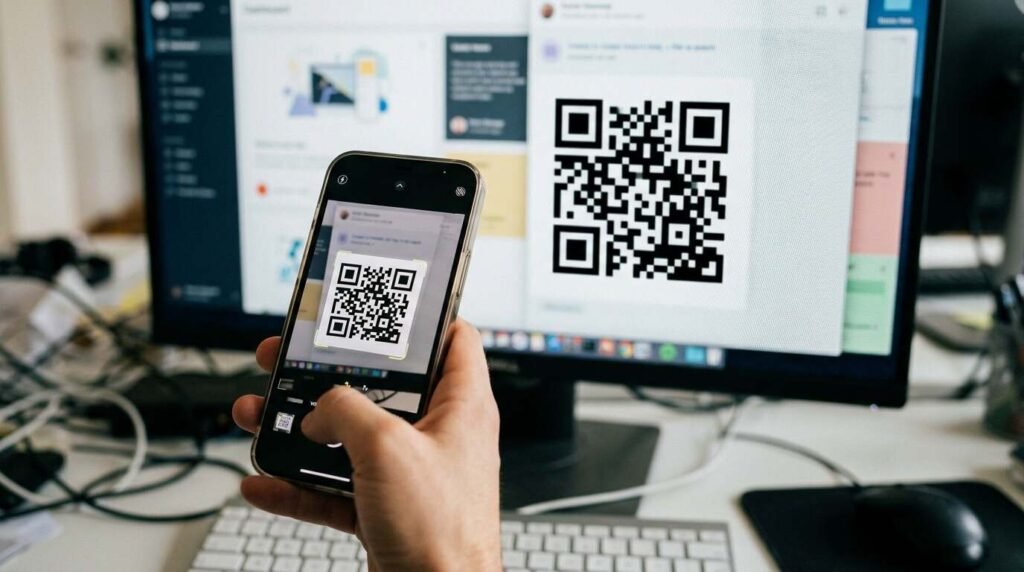
App-based codes are stronger than text messages because they cannot be intercepted through a SIM swap. Text message codes are still much better than no second factor, so use them if an app is not offered.
Step 3: Save Your Recovery Codes
Most sites show a list of one-time recovery codes when you enable two-step verification. Save them in your password manager or print them and keep the page somewhere safe.
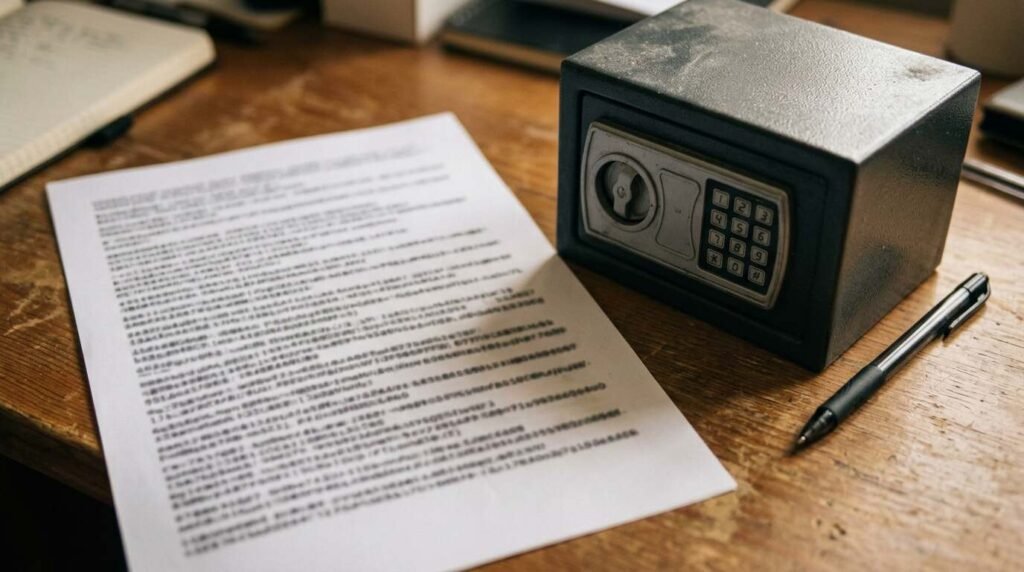
These codes are what get you back in if you lose your phone. Do not leave them in an unprotected note on the same device that holds the authenticator.
Step 4: Create a Passkey
Where a site supports passkeys, choose Create a passkey in the security settings. Your device asks you to confirm with a fingerprint, face scan, or PIN, and the passkey is saved to your password manager or platform keychain.

Next time you sign in, the site offers the passkey and you approve it the same way. Many passkeys sync across your devices through your account, so a lost phone does not mean a locked-out account.
Step 5: Add a Backup and Review
Register a second way to sign in, such as another device, a hardware security key, or a second authenticator entry. Then review the list of signed-in devices and remove any you do not recognize.
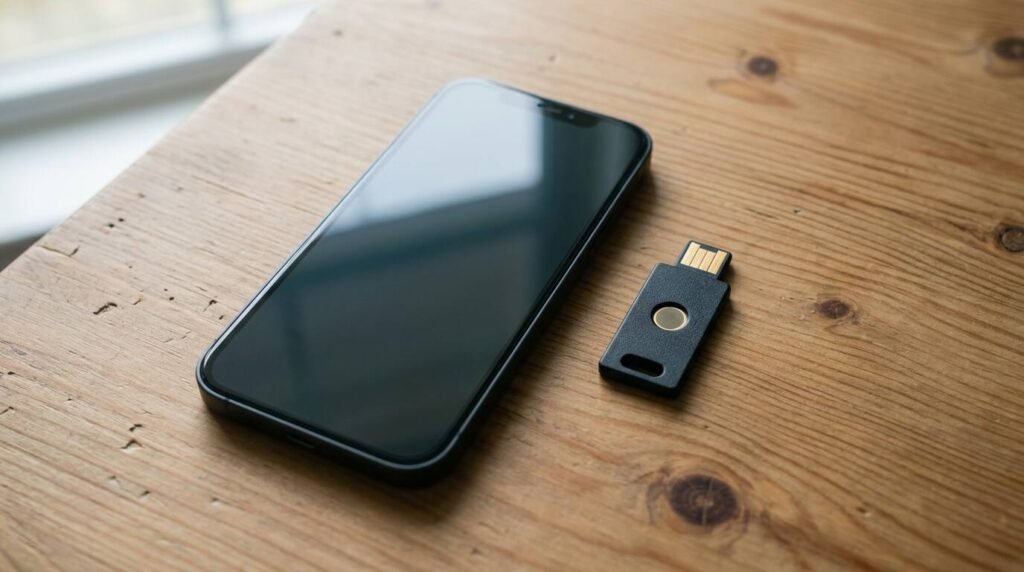
Put a reminder on your calendar to repeat this check twice a year. Account security is a habit, not a one-time task.
Troubleshooting
- If a site does not offer passkeys yet, use an authenticator app and a strong unique password
- If you lost your phone, use a recovery code and then set up the new device
- If a code is rejected, check your phone’s clock; time sync errors cause failures
- If you are asked to use a code you did not request, treat it as a sign-in attempt and change your password
Frequently Asked Questions
Are passkeys better than passwords? Yes for phishing resistance, since there is no secret to type into a fake site. Many sites still keep passwords as a fallback.
Which second factor is strongest? A hardware security key or a passkey is stronger than an authenticator app, which is stronger than text messages.
What happens if I lose my phone? With recovery codes saved and passkeys synced, you can sign in from another device and set up a replacement.
Do I need a password manager? It is strongly recommended. It stores passkeys, passwords, and recovery codes in one protected place.
Bottom Line
Secure the email account first, add an authenticator, save the recovery codes, and switch to passkeys wherever they exist. It takes about half an hour for your most important accounts and removes the most common way people get hacked.