






Learn how to install Ollama, pull a model, chat in the terminal, and call it from code, all on your own PC with no cloud account needed.
Ollama is a free tool that lets you download an open-weight language model and chat with it on your own computer. Nothing you type leaves the machine, there is no per-token bill, and it keeps working when the internet drops. The trade-off is hardware: the model has to fit in your memory, and a laptop will answer more slowly than a data center.
This guide walks through the whole path in five steps: install, pick a model, run it, manage what you have downloaded, and call it from your own code. Commands and menu labels can shift between releases, so treat the Ollama website and its built-in help as the final word if something looks different on your screen.
What You Need
- A Windows, macOS, or Linux computer with at least 8 GB of RAM (16 GB is more comfortable)
- Several gigabytes of free disk space for each model you download
- An internet connection for the install and the first download only
- A GPU helps with speed but is not required
Step 1: Install Ollama
Download the installer for your operating system from ollama.com and run it. On Windows and macOS it behaves like any other app installer. On Linux, the site provides a one-line install script that you paste into a terminal.
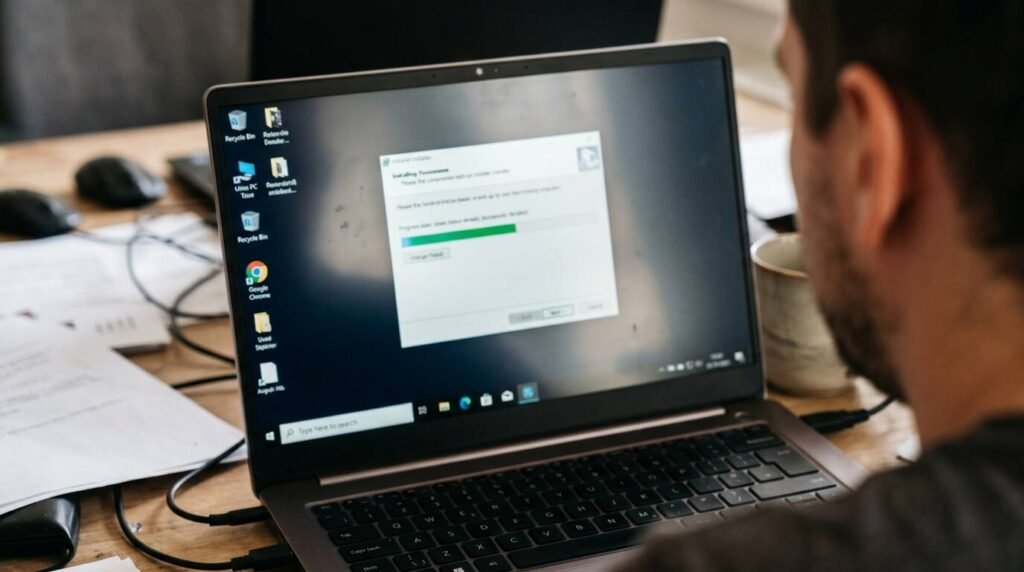
When it finishes, open a terminal (Terminal on macOS and Linux, PowerShell or Command Prompt on Windows) and type ollama --version. A version number means the install worked. Ollama also runs a small background service, so you may see an icon in your menu bar or system tray.
Step 2: Choose a Model That Fits Your Memory
Models are listed in the library on the Ollama website, each with several sizes. The number in a name such as 3b, 8b, or 70b counts billions of parameters, and the file size grows with it. A common rule of thumb in the Ollama documentation is about 8 GB of RAM for 7B-class models and 16 GB for 13B-class models, so match the size to your machine instead of picking the biggest one.
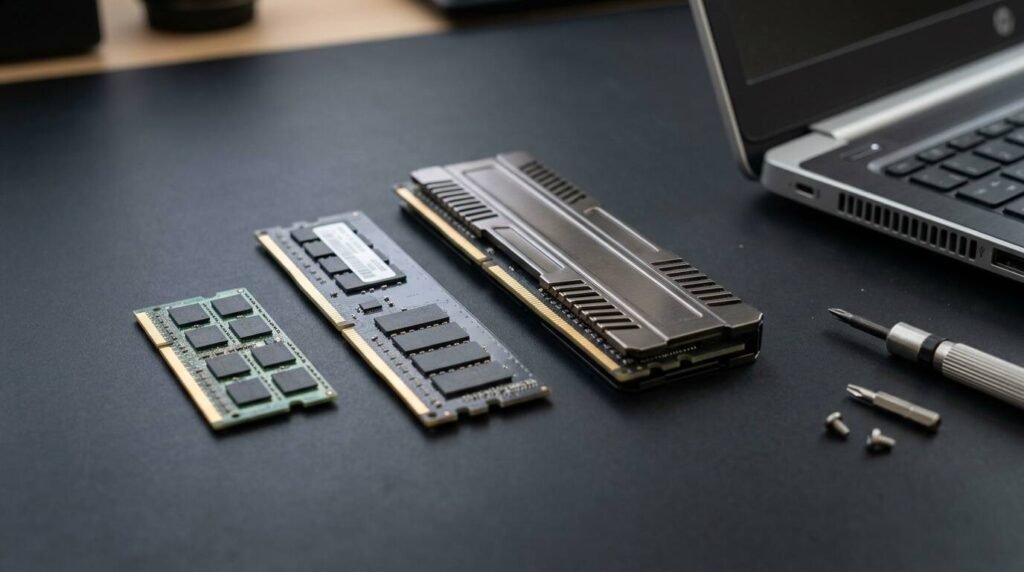
If you are unsure, start small. A 3B to 8B model answers quickly on ordinary hardware and is good enough to learn the workflow. You can always pull a larger one later.
Step 3: Pull and Run Your First Model
In the terminal, run ollama run llama3.2, swapping in any model name from the library. The first time, Ollama downloads the model, which can take a few minutes. After that it opens a chat prompt where you type a question and press Enter.
To leave the chat, type /bye. The model stays on disk, so the next ollama run starts almost immediately. Responses are generated on your own hardware, so expect them to appear word by word rather than all at once.
Step 4: Manage Your Downloaded Models
Models take real space, so it pays to know what you have. These commands cover most day-to-day needs:
ollama listshows every model on disk with its sizeollama pull namedownloads or updates a model without starting a chatollama rm namedeletes a model you no longer useollama psshows which models are currently loaded in memory
Step 5: Use the Local API From Your Own Code
While Ollama is running, it serves a local web API at http://localhost:11434. Any program on your machine can send a prompt to it, which makes it easy to wire a local model into a script, a note-taking tool, or a small app.
A quick test from the terminal is a curl request that posts a JSON body containing a model name and a prompt to the /api/generate endpoint. Because the server is bound to your own computer by default, other devices on your network cannot reach it unless you change that setting on purpose.
Troubleshooting
- If a model is painfully slow, try a smaller size or a more heavily quantized version
- If the download stalls, run the pull command again; it resumes where it stopped
- If the command is not found, close and reopen the terminal so the new path is picked up
- If your disk fills up, run
ollama listand remove models you do not use
Frequently Asked Questions
Is Ollama really free? The software is free to use. Individual models carry their own licenses, so check the terms before using one in a commercial product.
Do I need a GPU? No. Ollama runs on the CPU, just more slowly. A supported GPU speeds up responses considerably.
Is my data private? Prompts are processed on your machine. Ollama only reaches the internet to download models and updates.
Will a local model match the best cloud assistants? Usually not. Small open models are capable for drafting, summarizing, and coding help, but the largest hosted models still lead on hard reasoning.
Bottom Line
Running Ollama takes about ten minutes the first time and gives you a private model you control. Start with a small model, learn the four management commands, and move to the local API once the chat feels familiar. Then scale the model size to whatever your hardware can carry.